
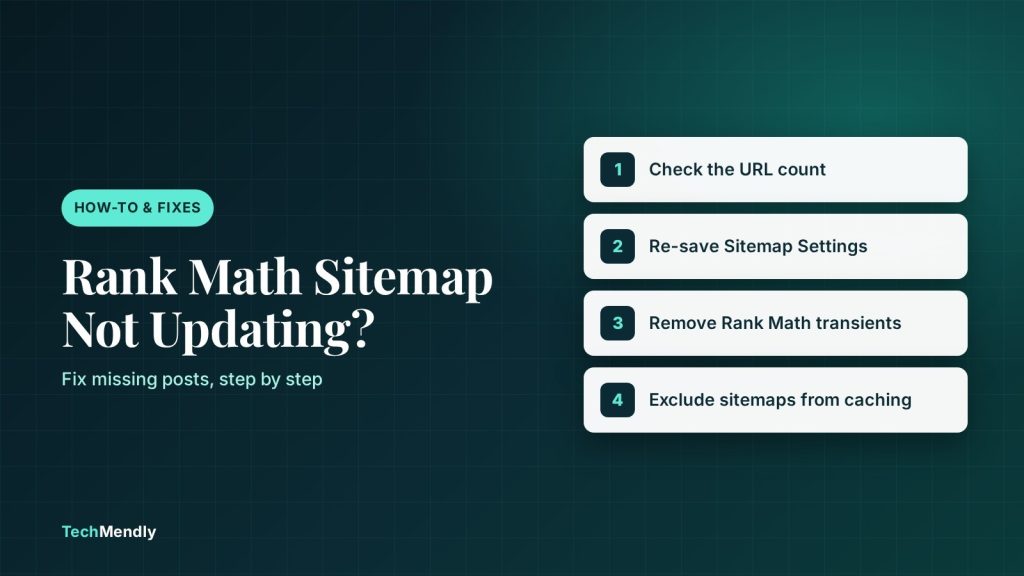
If new posts are missing from your Rank Math sitemap, the plugin is usually serving an old saved copy of it. Open yoursite.com/post-sitemap.xml and compare the number of URLs with your published posts. If it’s lower, go to Rank Math > Sitemap Settings and click Save Changes without changing anything. That forces a rebuild on most sites. If it doesn’t, work through the other fixes below, then resubmit the sitemap in Google Search Console.
You publish a new post, wait a day, and it still isn’t in your sitemap. Search Console says it found the page some other way, or it doesn’t know about it at all. The sitemap itself loads without errors, so it looks fine until you count the entries.
This is a common Rank Math problem, and it’s usually quick to fix once you know where to look. On our own WordPress sites, post-sitemap.xml was missing the newest posts, and one site’s main sitemap index didn’t list the post sitemap at all. Re-saving the sitemap settings in Rank Math rebuilt both.
This guide shows you how to confirm the sitemap is out of date, the fixes in the order worth trying, and how to tell Google once it’s right.
Step 1: Confirm the sitemap is really out of date
Don’t guess. Two minutes of checking tells you whether you have a sitemap problem or a different one.
- Open
yoursite.com/sitemap_index.xml. This is the main list. It should link to a post sitemap, a page sitemap and one for each category or post type you’ve switched on. - Open
yoursite.com/post-sitemap.xmland press Ctrl + F5 (Cmd + Shift + R on Mac) so your browser doesn’t show its own saved copy. - Rank Math shows the number of URLs near the top of the page. Compare it with Posts > All Posts > Published in your dashboard.
- Look at the last-modified dates. If your newest post isn’t listed and the dates stop days ago, the sitemap is stale.
Two things are normal and not a problem. A post set to noindex is left out of the sitemap on purpose. And if you’ve switched a post type or category off in Rank Math > Sitemap Settings, its sitemap won’t appear in the index.
Why a Rank Math sitemap goes stale
To avoid rebuilding the sitemap on every visit, Rank Math keeps a built copy and serves that. According to Rank Math’s support team, the copy is stored as a transient and as XML files in the wp-content/uploads/rank-math folder. Normally it refreshes when your content changes. When it doesn’t, you’ll see one of these:
| What you see | Likely cause | Where to start |
|---|---|---|
| Newest posts missing, older ones fine | Rank Math is serving its old saved copy | Fix 1 or Fix 2 |
| Sitemap index doesn’t list the post sitemap | The index was saved before you had posts, and never rebuilt | Fix 1 |
| Sitemap looks right in a private window but not for you | Your browser cached the XML | Hard refresh (Ctrl + F5) |
| A caching plugin, host cache or Cloudflare is active | The XML file itself is being cached | Fix 4 |
| One specific post is missing | The post is noindex, or its post type is switched off | Check the post’s Rank Math robots setting |
Fix 1: Re-save the sitemap settings
This is the quickest fix, and it worked for us. Rank Math’s support team also recommends it as a way to regenerate the sitemap.
- In your dashboard, go to Rank Math SEO > Sitemap Settings.
- Don’t change anything. Scroll to the bottom and click Save Changes.
- Reload
sitemap_index.xmlandpost-sitemap.xmlwith Ctrl + F5. - Check that the URL count now matches your published posts.
If the settings page is a long list, make sure you’re on the General tab of Sitemap Settings, not the HTML Sitemap tab. The HTML sitemap is a page for visitors, not the file Google reads.
Fix 2: Change “Links Per Sitemap” by one
If Fix 1 changed nothing, Rank Math support has suggested this for stubborn cases. Under Rank Math SEO > Sitemap Settings > General, raise Links Per Sitemap by one (for example from 100 to 101) and save. The changed value forces a rebuild. You can put it back afterwards, or leave it, since the difference doesn’t matter.
Fix 3: Remove Rank Math’s transients
Rank Math also stores temporary data in your database. Clearing it can unstick an old sitemap.
- Go to Rank Math SEO > Status & Tools > Database Tools.
- Find Remove Rank Math Transients and click the button.
- Re-check the sitemap with a hard refresh.
Fix 4: Stop caching plugins and Cloudflare serving old XML
A caching plugin, your host’s server cache or Cloudflare can hold on to the sitemap file even after Rank Math rebuilds it. Clear the site cache first, then exclude the sitemap URLs from caching so it can’t happen again.
- Caching plugin: add
sitemap_index.xml,*-sitemap.xmlandmain-sitemap.xslto its “never cache” list. - Cloudflare: purge those URLs under Caching > Configuration, and use a cache rule to bypass them.
- Host cache: ask your host to exclude them, or clear the server cache from your hosting panel.
Rank Math has its own guide for this, called How to Exclude Sitemaps from Caching. Our post on clearing WordPress and Elementor caches in the right order covers purging each layer.
Sometimes the cache isn’t the cause. One blogger who hit this problem checked their headers, found nothing cached, and only fixed it by turning off Rank Math’s own sitemap caching (Fix 5). So if you’ve cleared every cache and the sitemap is still behind, don’t keep clearing caches. Move on.
Fix 5: Turn off Rank Math’s sitemap cache (last resort)
Rank Math support recommends this filter when nothing else works. It makes Rank Math build the sitemap fresh on every request instead of saving a copy. On a small blog that’s fine. On a very large site it adds server load, so use it only if you need to.
Add this with a code snippets plugin, or to your child theme’s functions.php:
add_filter( 'rank_math/sitemap/enable_caching', '__return_false' );
After adding it, Rank Math support also advises deleting the old XML files inside wp-content/uploads/rank-math so nothing stale is left behind. Take a backup first.
Don’t edit functions.php in the live theme editor if you’re not confident. A typo can take the site down. Use a snippets plugin, or edit over FTP or your host’s file manager so you can undo it.
Tell Google once it’s fixed
A correct sitemap helps Google find your pages, but it doesn’t make them rank or get indexed instantly. After the fix:
- Reload the sitemap with a hard refresh and confirm the URL count matches your published posts.
- Open Google Search Console and go to Indexing > Sitemaps.
- Make sure
sitemap_index.xmlis submitted. If you’ve submitted several individual sitemaps before, Rank Math suggests removing them and keeping only the index. - Check that the status says Success, and revisit in a few days to see how many pages Google has discovered.
Also check that the sitemap index actually links to post-sitemap.xml. If the index leaves it out, Google won’t find your posts through the index, even though the post sitemap loads fine when you open it directly.
When a Rank Math sitemap isn’t updating, count the URLs in post-sitemap.xml against your published posts. If they don’t match, re-save Rank Math > Sitemap Settings. If that fails, change Links Per Sitemap by one, remove Rank Math’s transients, and exclude sitemaps from your caching. Turn off Rank Math’s sitemap cache only as a last resort, then confirm the sitemap in Search Console.
Frequently asked questions
Why is my new post not in the Rank Math sitemap?
The most common reason is that Rank Math is serving a saved copy of the sitemap from before your post was published. Re-saving the Sitemap Settings usually rebuilds it. Also check that the post isn’t set to noindex, since those are left out on purpose.
How do I regenerate my Rank Math sitemap?
Go to Rank Math SEO > Sitemap Settings and click Save Changes. If it doesn’t rebuild, change Links Per Sitemap by one and save, or remove Rank Math’s transients under Status & Tools > Database Tools.
Does clearing my cache plugin fix a stale sitemap?
Only if the cache plugin or CDN is the one holding the old file. Rank Math keeps its own saved copy too, so you may need to re-save the sitemap settings as well as clear the cache.
Do I need to resubmit my sitemap to Google after fixing it?
Not always, because Google rechecks submitted sitemaps by itself. But submitting sitemap_index.xml in Search Console and checking its status is a good way to confirm Google can read it.
More step-by-step fixes are in our How-To & Fixes section.
Sources: WordPress.org support: Rank Math sitemap not updating; Rank Math support: sitemap not getting updated; Rank Math support: transients and sitemap cache; Rank Math: Exclude sitemaps from caching; New Pulse Labs: Rank Math sitemaps not updating. Checked October 2026.
More in How-To & Fixes

Squarespace Tax Not Showing at Checkout? 6 Fixes to Try
Squarespace tax not showing at checkout? Find the cause in your automated or manual setup, registrations or Include in price, and fix it in minutes.
WordPress REST API Returning Old Data? Fix the Cache
WordPress REST API returning old data? Find the cache serving stale JSON, then bypass /wp-json/ in Cloudflare, LiteSpeed or WP Rocket and purge it.

WooCommerce Showing Wrong Currency? 5 Fixes That Work
WooCommerce showing wrong currency? Find the setting, plugin, code snippet or cached page behind it and fix the symbol, prices and store location.