
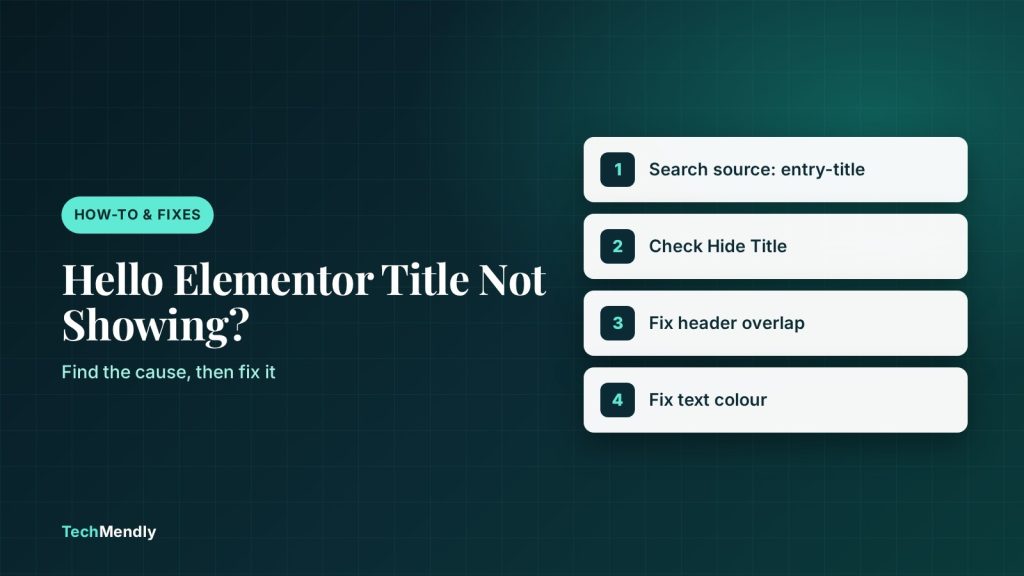
If your Hello Elementor page title is not showing, it is almost always one of three things: the title is switched off (Hide Title or the hello_elementor_page_title filter), the transparent header is sitting on top of it, or the text colour matches the background. Right-click the spot where the title should be, choose Inspect and search for entry-title. That one check tells you which fix to use.
You build a clean transparent header, preview the page, and the title is gone. No heading, no error, just a blank gap or a suspicious stretch of white. It looks like the title was deleted, but usually it is still on the page and you just can’t see it.
We see this one on client sites a lot, especially when a white header menu is placed over a light page. The cause is different from site to site, so guessing at CSS wastes time. This guide shows how to find out what is happening first, then fix it properly.
Everything here applies to the free Hello Elementor theme and a header built in Elementor. Where something needs Elementor Pro, we say so.
First, find out whether the title exists at all
Hello Elementor prints the page title itself. In the theme’s template-parts/single.php, the title is wrapped like this: a div with the class page-header, containing an h1 with the class entry-title, placed at the top of main#content. If those elements are in your page source, the theme is doing its job and the problem is visual.
- Open the live page (not the Elementor editor) in Chrome, Edge or Firefox.
- Press Ctrl + U to view the source, then Ctrl + F and search for
entry-title. - If you find
<h1 class="entry-title">with your title inside, the title is there. Go to the sections on overlap and colour. - If there is no match, the theme was told not to print it. Go to the section on hidden titles.
| What you find | Likely cause | Go to |
|---|---|---|
No entry-title in the source |
Hide Title is on, a filter removes it, or the page uses Elementor Canvas | Fix 1 |
entry-title exists, but the title sits under the header |
Header is positioned absolute or fixed, so it overlaps the content | Fix 2 |
entry-title exists and is at the right spot, but looks empty |
Text colour is the same as the background | Fix 3 |
Fix 1: The title is switched off
There are three common ways the title gets removed.
Hide Title in Elementor page settings
Open the page in Elementor, open Page Settings, and look for the Hide Title option. Elementor’s own help page lists this as the way to hide page titles. Turn it off if you want the title back. Note that the title can still look visible in the editor even when it is hidden on the live page, so always check the front end.
The hello_elementor_page_title filter
Hello Elementor wraps the title in a check, apply_filters( 'hello_elementor_page_title', true ). Elementor’s developer docs show that returning false stops the title markup being printed. If someone added this line to a child theme or a Code Snippets plugin, every title disappears:
add_filter( 'hello_elementor_page_title', '__return_false' );
Look in your child theme’s functions.php and in any snippet plugin for that line. Remove it, or restrict it to the pages where you really want no title.
Elementor Canvas page layout
If the page layout is set to Elementor Canvas, the page renders without the theme header and footer, so there is no theme title either. Switch the layout to Elementor Full Width if you want your header and footer to remain, or add a Heading widget yourself.
On a page with Elementor Pro you can place a Heading widget and connect it to the Post Title dynamic tag. That gives you full control of the title without touching the theme.
Fix 2: The transparent header is covering the title
A normal header takes up space in the page. A transparent header usually does not. To let the page background show through, the header is often given an absolute or fixed position, which removes it from the page flow. The content then starts at the very top of the screen, and the title slides up underneath the header.
This is the classic case where the title looks missing. It is there, just hidden behind your logo and menu.
Add space above the title
The simplest fix is to push the title down by about the height of the header. Go to Appearance > Customize > Additional CSS and add:
.page-header { padding-top: 120px; }
Change 120 to roughly your header’s height in pixels. If you only want this on mobile or desktop, wrap the rule in a media query. Check both, because a header is usually a different height on a phone.
Or put the header back in the flow
Open the header in Templates > Theme Builder, select the top container, and look at the Advanced tab under Positioning. If the position is Absolute or Fixed, you chose it to get the overlay effect. If you do not actually need the page to slide under the header, remove the position and the title returns to its normal spot.
A sticky header is a separate setting (Advanced > Motion Effects > Sticky). Sticky on its own does not hide the title, but combine it with an absolute position and the problem reappears after scrolling back to the top.
Fix 3: White text on a white page
Transparent headers are normally designed for a dark hero image, so the menu text is white. If the page has no hero image, white text and a white background look like nothing at all. The page title can end up in the same state if its colour comes from a global or theme colour that happens to be light.
Select the title with Inspect and check its computed colour in the Styles panel. If it matches the background, set it explicitly in Additional CSS:
.page-header .entry-title { color: #1a1a1a; }
The same applies to the header itself. If your white menu items disappear on pages without a hero image, give the header a background colour or a dark overlay on those pages. Elementor’s header guides suggest a semi-transparent overlay, such as black at 20% opacity, to keep text readable over an image.
Do not fix this by setting the title to display: none and then hoping for the best. You lose the page’s only H1, which hurts how search engines understand the page. Show it, or replace it with another proper H1.
Check it with the right cache cleared
You can make the correct change and still see the old result. Elementor generates CSS files and your host may cache pages. If the title does not come back after a fix, work through the layers in our guide on Elementor changes not showing. If you also use Cloudflare, see how to fix the Cloudflare redirect loop so a caching rule is not the real culprit.
When testing, use a private window and the real front-end URL. The Elementor editor and preview do not always match the live page.
Search the page source for entry-title. Missing means the title is switched off (Hide Title, the hello_elementor_page_title filter or Elementor Canvas). Present but not visible means the transparent header overlaps it (add top padding to .page-header) or the text colour matches the background (set a colour on .page-header .entry-title).
Frequently asked questions
Why is my Elementor page title not showing?
Either Hide Title is enabled, a filter or Canvas layout stops the theme printing it, or the title is on the page but covered by the header or matching the background colour. View the page source and search for entry-title to tell which.
How do I show the page title in Hello Elementor?
Open the page in Elementor, go to Page Settings and turn off Hide Title. Also make sure no code is applying hello_elementor_page_title with __return_false, and that the page layout is not Elementor Canvas.
Why does my title go behind a transparent header?
Transparent headers are typically positioned absolute or fixed, so they no longer take up space. The page content starts at the top of the screen and the title ends up underneath. Add padding above the title or put the header back in the flow.
Is it bad for SEO to hide the page title?
A page should keep one clear H1. Hiding it with CSS removes visible context for readers. If you want a different layout, replace the theme title with your own Heading rather than removing it.
Sources: Elementor Developers: hello_elementor_page_title; Hello Elementor theme source (single.php); Hello Elementor theme source (functions.php); Elementor Help: hide page titles; Elfsight: transparent header in Elementor. Checked October 2026.
More in How-To & Fixes

Squarespace Tax Not Showing at Checkout? 6 Fixes to Try
Squarespace tax not showing at checkout? Find the cause in your automated or manual setup, registrations or Include in price, and fix it in minutes.
WordPress REST API Returning Old Data? Fix the Cache
WordPress REST API returning old data? Find the cache serving stale JSON, then bypass /wp-json/ in Cloudflare, LiteSpeed or WP Rocket and purge it.

WooCommerce Showing Wrong Currency? 5 Fixes That Work
WooCommerce showing wrong currency? Find the setting, plugin, code snippet or cached page behind it and fix the symbol, prices and store location.