

For backups that run on a schedule or sit on a shelf, a portable hard drive is the cheaper way to get a lot of space. A portable SSD costs more per gigabyte but is far faster and handles knocks better, so it suits project files you carry around and big one-off copies. Whichever you pick, one drive on your desk is not a backup plan: keep a second copy somewhere else, such as a cloud backup, so a theft, fire or failed drive can’t take everything.
You’ve decided to stop trusting one laptop with everything, which is a good decision. Then you open a shop page and find two kinds of external drive that look almost identical: a spinning hard drive for a modest price and a small SSD that costs noticeably more per gigabyte. Which one is the better place to keep your backups?
The honest answer is that it depends on how you back up, not on which drive wins a speed test. This guide covers the differences that matter for backups, what the published numbers say, and how to set up something simple that actually protects your files.
How we put this together: we haven’t lab-tested these drives ourselves. The speed figures below come from ThirstyBear’s published tests, and the failure-rate figure comes from Backblaze’s 2025 report. Both are linked at the end so you can check them. Prices change often, so we don’t quote them. Look up current prices before you buy.
Portable SSD vs external hard drive: the differences that matter
| What matters | Portable SSD | Portable hard drive (HDD) |
|---|---|---|
| Speed | Much faster. Tested drives reach roughly 1,000 MB/s. | Slower. Tested drives land around 100 to 130 MB/s. |
| Price per gigabyte | Higher | Lower, which is why HDDs dominate large capacities |
| Knocks and travel | No moving parts, so it copes better with drops and vibration | More vulnerable to drops and vibration, especially while running |
| Noise and power | Silent and more energy efficient | Audible spin-up, slightly higher power use |
| Best for | Active project files, large transfers, frequent travel | Scheduled backups, archives, big libraries on a budget |
How much faster is an SSD, really?
ThirstyBear’s October 2026 round-up of external drives measured three popular drives. In its tests, the Samsung T7 1TB portable SSD reached about 1,012 MB/s read and 982 MB/s write, close to its listed 1,050 and 1,000 MB/s. The Seagate Portable 2TB managed around 130 MB/s, and the WD Elements 2TB averaged around 100 MB/s.
Here is what that means for a single large backup. Copying 100 GB at those sustained speeds takes roughly:
| Drive (as tested by ThirstyBear) | Speed used | Time to copy 100 GB |
|---|---|---|
| Samsung T7 portable SSD | about 1,000 MB/s | about 1 min 40 sec |
| Seagate Portable HDD | about 130 MB/s | about 13 min |
| WD Elements HDD | about 100 MB/s | about 17 min |

Those are best-case figures for large, continuous copies. Folders with thousands of small files copy more slowly on any drive. The practical point is still clear: if you back up once a night while you sleep, the extra speed barely matters. If you copy big files while you wait, it matters a lot.
Which drive fails less often?
Nobody can promise that a particular drive will last. The best public data comes from Backblaze, which tracks the hard drives in its data centres. For 2025, it reported an overall annualized failure rate of 1.36%, down from 1.55% in 2024, across 344,196 drives and 30 drive models.
Read that number carefully:
What it tells you
- Healthy hard drives still fail: roughly one to two in every hundred each year
- Failure rates differ by model and age, so some drives do much worse than the average
What it doesn’t tell you
- It covers data-centre hard drives, not the portable drives you carry in a bag
- Backblaze left out its boot drives from the annual analysis, so it says nothing about SSD reliability
- It can’t predict whether your drive will fail this year
The useful takeaway is not “SSDs are safer” or “hard drives are safer”. Both can last many years with care, and both can fail without warning. That is exactly why a backup should never live on one drive.
The rule that matters more than the drive: 3-2-1
Backup professionals have long recommended the 3-2-1 rule:
- 3 copies of your data: the original plus two backups
- 2 different types of storage, for example your computer’s drive and an external drive
- 1 copy offsite, such as a cloud backup or a drive kept somewhere else
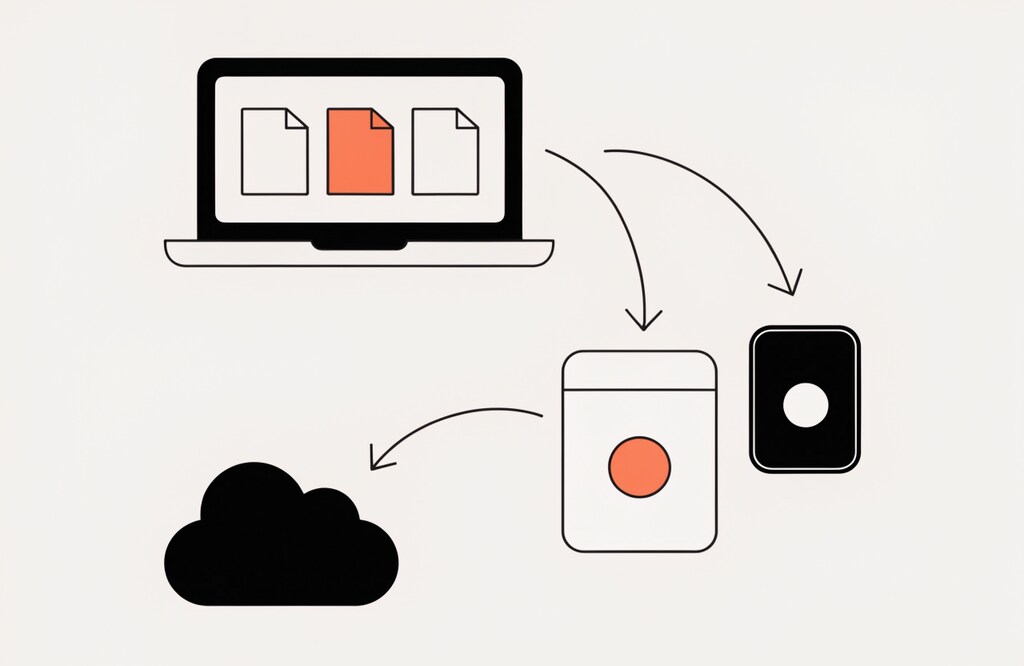
A single external drive that lives next to your laptop gives you two copies in the same place. A theft, a fire or a power surge can take both at once. Adding a cloud backup or keeping a second drive at another location is what turns a drive into a real backup plan.
Which one should you buy?
Choose a portable SSD if
You carry and copy files often
- You move large project files between machines
- You travel or work in different places
- You want quick backups while you wait
Choose a portable hard drive if
You want the most space for the money
- Your backups run automatically overnight
- You are archiving photos, video or old projects
- The drive will mostly stay in one place
Many people end up with both: a small SSD for active files and a larger hard drive for backups and archives. That mix matches what ThirstyBear and other reviewers suggest, and it also gets you two storage devices toward the 3-2-1 rule.
Set up a simple backup in five steps

- Pick enough capacity. Choose a drive at least twice the size of the data you want to protect, so it has room for several versions.
- Format it for how you will use it. If you use a Mac’s Time Machine, let macOS set the drive up for it. If you share the drive between Windows and Mac, exFAT works on both.
- Automate the backup. Use Time Machine on a Mac or Windows’ built-in backup tools so it runs on a schedule. A backup you must remember to start is easy to skip.
- Turn on encryption. A lost or stolen drive then doesn’t expose your files. Time Machine offers an encrypt option, and Windows supports BitLocker on supported editions.
- Add an offsite copy and test a restore. Use a cloud backup or a second drive kept elsewhere, then restore one file every few months to prove the backup works.
Run a WordPress site? Back up both the database and the wp-content folder, and don’t rely only on your host’s backups. Take a fresh backup before every major update, such as the one covered in our WordPress 7.1.2 security update guide.
Don’t leave an SSD or hard drive unplugged in a drawer for years and assume the data is safe. Storage can degrade over time. Plug old backup drives in every so often, check the files open, and copy them to newer storage when needed.
Buy a portable hard drive if you want cheap, roomy storage for automatic backups, and a portable SSD if you copy large files often or travel with your data. Then follow the 3-2-1 rule: keep a second type of storage and one offsite copy, turn on encryption, and test a restore. The drive you buy matters less than having more than one copy.
Frequently asked questions
Is an SSD or an HDD better for backups?
Neither is better in every case. An HDD gives you more space for less money and works well for scheduled backups and archives. An SSD is faster and tougher, which suits large transfers and travel. Many people use an SSD for active files and an HDD for backups.
Do SSDs last longer than hard drives?
Not reliably. Both can last many years with proper care and both can fail without warning. An SSD has no moving parts, which helps if it is knocked or carried around, but no drive type is guaranteed to outlast the other. Keep more than one copy.
How much storage do I need for backups?
Aim for at least twice the amount of data you want to protect. That leaves room for older versions of your files, which is what lets you recover something you deleted or changed weeks ago.
Is one external drive enough?
No. A single drive kept beside your computer is exposed to the same theft, fire or power surge. Add an offsite copy, such as a cloud backup or a second drive stored elsewhere.
Is cloud backup better than an external drive?
They do different jobs. A drive is fast to restore from and has no monthly fee. A cloud backup is offsite, so it survives a disaster at home. Using both covers the 3-2-1 rule.
How often should I test my backup?
Try restoring a single file every few months. A backup you have never restored from is only a guess that it works.
Sources: Backblaze: Drive Stats for 2025; ThirstyBear: Best External Hard Drives (speeds are from the site’s own testing and are not independently verified); Tech Times: Should You Buy a Portable SSD or External Hard Drive?. Checked October 2026.