
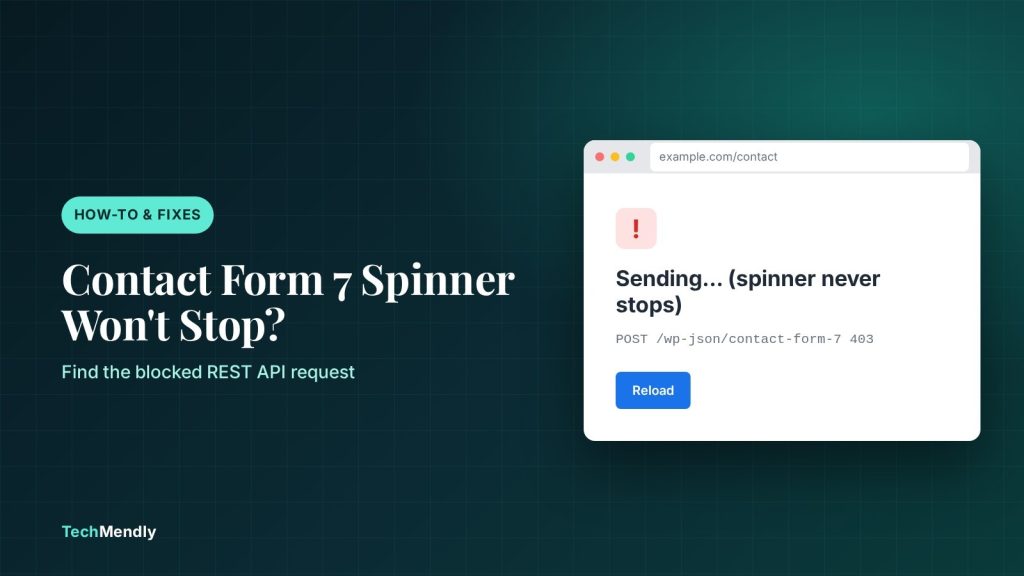
When the Contact Form 7 spinner keeps spinning, the browser is waiting for a reply from the plugin’s REST API endpoint and not getting a usable one. Open your browser’s Network tab, submit the form, and read the status of the /wp-json/contact-form-7/v1/contact-forms/ID/feedback request. A 401 or 403 means a security plugin, password plugin or firewall is blocking it. A 500 means a PHP error. Fix the blocker, clear every cache, and the spinner stops.
You click Send, the little spinner appears, and nothing else happens. No green success message, no red error, and often no email either. If this is your form, you are not alone, and it is almost never a problem with the form itself.
Contact Form 7 sends submissions in the background through the WordPress REST API. If that request is blocked, errors out or never starts, the spinner has nothing to wait for and keeps going. This guide shows how to find out which of those it is in about two minutes, then fix it. If your form says “sent” but the email never arrives, that is a different problem, covered in our guide to WordPress contact form emails not arriving.
Why the Contact Form 7 spinner keeps spinning
The official Contact Form 7 FAQ states that version 4.8 and later use the WordPress REST API for Ajax submission. When you press Send, the page’s JavaScript posts your data to a URL that looks like /wp-json/contact-form-7/v1/contact-forms/123/feedback and waits for a JSON answer. That answer tells the page whether to show “Thank you” or a validation error.
The spinner hangs when the answer never comes back in a form the script understands. Real support threads on WordPress.org show the same handful of causes again and again:
- A plugin that blocks the REST API for logged-out visitors, which includes most visitors to your site.
- A firewall or security rule that returns 403 Forbidden for the form request.
- A PHP error on the server, shown as a 500 response.
- A plugin conflict, for example with an add-on that hooks into form submissions.
- Old cached pages or scripts that no longer match the plugin.
Step 1: Find the failing request in your browser
Do this before you change anything. It turns guessing into a diagnosis.
- Open the page with your form in a private window, so you are logged out like a real visitor.
- Press F12 and open the Network tab. Type
feedbackin the filter box. - Fill in the form and press Send.
- Click the request that appears and note its Status. Also open the Console tab and look for red errors.
Test while logged out. A form that works when you are logged in but spins for visitors is the classic sign that something is blocking the REST API for anonymous users.
What the status tells you
| What you see | Likely cause | Go to |
|---|---|---|
| 401 Unauthorized | A plugin requires login for REST API requests | Fix 1 |
| 403 Forbidden | Security plugin, firewall rule or a conflicting plugin | Fix 2 |
| 500 Internal Server Error | A PHP error from a plugin or the theme | Fix 3 |
No feedback request at all |
JavaScript error or an outdated cached script | Fix 4 |
| Works only when logged in | REST API restricted to logged-in users | Fix 1 |
Fix 1: A plugin is blocking the REST API (401)
Some plugins that “disable the REST API” or protect the whole site with a password also block Contact Form 7. A support thread for a form stuck on an endless spinner shows a log line from a REST API blocking plugin: “Only authenticated users can access the REST API.” The fix the user confirmed was to whitelist the /contact-form-7/v1 path in that plugin’s settings.
Another WordPress.org thread describes forms that stopped submitting with a Password Protected plugin active, with a 401 Unauthorized on the feedback request. There the answer was to update the plugin and switch on its “Allow REST API Access” option.
- Go to Plugins > Installed Plugins and look for anything that restricts the REST API, protects the site with a password, or runs a maintenance or coming-soon mode.
- Open that plugin’s settings and allow the
/contact-form-7/v1route (or allow REST API access for logged-out users). - Clear your caches and test again in a private window.
The WordPress developer handbook says not to disable the REST API, because the admin area depends on it. If you want to restrict anonymous access, use the rest_authentication_errors filter and allow the routes you need, rather than switching the API off.
Fix 2: A firewall or security rule returns 403
A 403 means the server understood the request and refused it. The refusal can come from a WordPress security plugin, your host’s firewall, or Cloudflare in front of your site.
Check Cloudflare first, if you use it
Cloudflare’s documentation says the sampled logs for blocked requests are in the dashboard under Analytics and then the Events tab. Each event shows the action taken, the security feature that applied it, and details such as the path. Look for events on a path containing contact-form-7 around the time you tested. If one is there, the event tells you which rule fired, and you can adjust or exclude that rule. If Cloudflare also sits in front of your REST API for other reasons, our guide on WordPress REST API returning old data covers bypass rules for /wp-json/.
Then check your security plugin and host
- Open your security plugin’s firewall or “block REST API” options and look at its log for the form request.
- Ask your host whether ModSecurity or a similar rule is blocking
POSTrequests to/wp-json/. Give them the exact URL from the Network tab and the time of your test.
Fix 3: A PHP error causes a 500 response
A 500 on the feedback request means PHP crashed while handling the form. One WordPress.org thread describes two forms that stopped sending under PHP 8.0 and 8.1 while other forms still worked, with the console showing a 500 on the feedback endpoint. The cause turned out to be another plugin, not Contact Form 7.
The Contact Form 7 author’s standard advice in these threads is to test on the default theme with every plugin except Contact Form 7 deactivated, and to clear all caches. Do it on a staging copy if you can. If not, do it in a quiet hour and switch things back straight after.
- Turn on logging. In
wp-config.php, above the line that says to stop editing, adddefine( 'WP_DEBUG', true );,define( 'WP_DEBUG_LOG', true );anddefine( 'WP_DEBUG_DISPLAY', false );. WordPress then writes errors towp-content/debug.logwithout showing them to visitors. - Submit the form once, then open
debug.log. The last lines usually name the plugin file that failed. - Deactivate plugins one at a time, testing the form after each, until the spinner stops. The plugin you just switched off is the conflict.
- Update that plugin, replace it, or contact its developer. Then remove the debug lines from
wp-config.php.
Plugins that hook into form submissions are the usual suspects, such as CRM connectors, anti-spam add-ons and entry-saving add-ons. In one thread, a resolved case came down to a conflict between Flamingo, the entry-saving plugin, and a page builder, which produced a 403 in some browsers.
Fix 4: No request is sent, or the page is cached
If the Network tab shows no feedback request at all, the script never ran or crashed before sending. Check the Console tab for red errors first. A different script on the page can break the form’s script if it fails earlier.
Then clear every cache in the right order: the page builder cache, your caching plugin, your host’s cache, and Cloudflare. Our guide Elementor changes not showing walks through that order. After clearing, test again in a private window, because your normal browser may still hold the old script.
A temporary workaround while you fix the cause
The official FAQ says that if the REST API is unavailable, you cannot use Ajax submission, but you can still use non-Ajax submission by turning off the plugin’s JavaScript on your pages. In one support thread, the poster did this by setting the WPCF7_LOAD_JS constant to false, and the spinner went away, though they wanted a proper fix instead.
Treat this as a stopgap. Without the script, the page reloads when the form is sent, and you lose the inline messages. The real fix is whatever is blocking the REST API.
What to check after the spinner stops
- Submit the form once as a logged-out visitor and confirm you see the success message.
- Check that the email arrives, including the spam folder. If it does not, move on to the SMTP guide linked above.
- Open
yoursite.com/wp-json/in a private window. You should see JSON, not an error page. - Turn debug logging off again and delete any old
debug.log.
Read the status of the feedback request in the Network tab. 401 or 403 points to something blocking the REST API, so allow the /contact-form-7/v1 route or fix the firewall rule. 500 points to a PHP error, so turn on debug.log and find the conflicting plugin. No request means a script problem or old cache. Do not leave the REST API switched off.
Frequently asked questions
Why does my Contact Form 7 form keep loading?
The form is waiting for a response from the REST API endpoint and not getting one it can use. The cause is usually a blocked request (401 or 403), a PHP error (500), or a script that fails before sending.
Does Contact Form 7 need the REST API?
For Ajax submission, yes. The official FAQ says versions 4.8 and later use the REST API. Without it you can only use non-Ajax submission, with the plugin’s JavaScript turned off.
Why does the form work when I am logged in but not for visitors?
Something restricts the REST API to logged-in users, such as a REST API blocking plugin, a password-protection plugin or a security setting. Allow the Contact Form 7 route for logged-out visitors.
How do I find the Contact Form 7 error in the browser?
Press F12, open the Network tab, filter for feedback, submit the form, and read the request’s status code. Check the Console tab for script errors too.
Should I disable the WordPress REST API to improve security?
The WordPress developer handbook advises against it, since the admin area relies on it. Restrict anonymous access with the rest_authentication_errors filter and allow only the routes your forms need.
Sources: Contact Form 7 FAQ: REST API; WordPress REST API FAQ; rest_authentication_errors hook reference; Debugging in WordPress; Cloudflare security events; WordPress.org support thread: REST API block; WordPress.org support thread: 401 error; WordPress.org support thread: 500 error. Checked October 2026.
More in How-To & Fixes
WordPress “The Link You Followed Has Expired”: 5 Fixes
Seeing "The link you followed has expired" in WordPress? Find the upload limit or expired nonce behind it and fix it with the right PHP settings.
Error Establishing a Database Connection: 6 Fixes
Seeing "Error establishing a database connection"? Check wp-config.php, database privileges and repair tools in order, and know when to call your host.
WordPress Critical Error on This Website: 6 Fixes
Seeing "There has been a critical error on this website"? Use the recovery email, debug log and a plugin check to find the cause and fix it fast.