
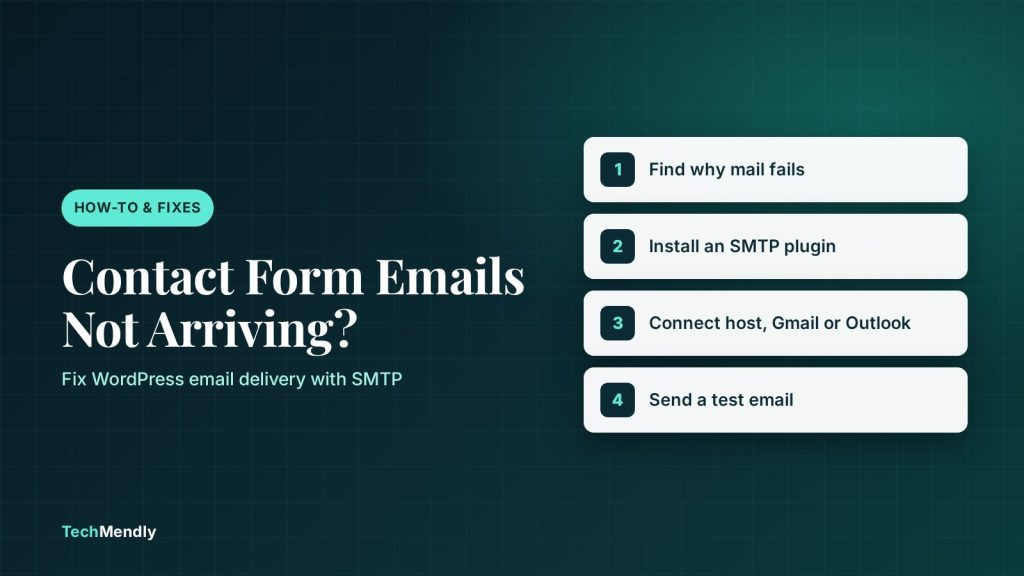
Contact Form 7, WPForms, HappyForms and other WordPress form plugins all send email through your server’s basic PHP mail function, which doesn’t log in anywhere, so Gmail and Outlook often treat those messages as suspicious. Install an SMTP plugin such as WP Mail SMTP, connect it to a real mailbox (your host’s email, Google, Microsoft or a sending service), make sure the From address matches that mailbox, and send a test. For Outlook and Microsoft 365, use the plugin’s dedicated Outlook option rather than a plain username and password.
A contact form that doesn’t deliver is worse than no form at all. Visitors think they’ve reached you, and you never find out they tried. It’s one of the most common problems we fix on small business WordPress sites, and it almost never has anything to do with the form plugin itself.
The good news: once you understand why the emails disappear, the fix takes about fifteen minutes and usually works for good.
Why WordPress form emails go missing
When someone submits a form built with Contact Form 7, WPForms, Elementor Forms or most other builders, the plugin passes the message to a WordPress function called wp_mail(). Out of the box, that function hands the email to PHP’s built-in mail system on your web server.
That sounds fine, but there’s a catch. The server sends the email without logging in to any mail account. It simply claims to be wordpress@yourdomain.com (or whatever address the form uses) and hopes the receiving mail service believes it.
- A visitor submits your formContact Form 7, WPForms or Elementor Forms receive the message
- WordPress calls wp_mail()By default this hands the email to your server’s PHP mail function
- Your server sends it without logging inOften from a shared IP address with a mixed reputation
- Gmail or Outlook checks SPF, DKIM and DMARCThe From address claims your domain, but the server can’t prove it
- Spam folder, or silently droppedYou never see the enquiry
SMTP fixes step 3: WordPress logs in to a real mailbox before sending.
Modern inboxes are much stricter than they used to be. Gmail, Outlook and Yahoo check three things before trusting a message:
- SPF: is this server allowed to send email for this domain?
- DKIM: is the message signed with the domain’s key?
- DMARC: what should happen if the first two checks fail?
A shared web server sending unauthenticated mail often fails one or more of these. The result is a message that lands in spam, or is quietly rejected without anyone being told.
First, confirm the problem
Before changing anything, check a few basics. It saves time if the issue turns out to be something simpler.
- Check spam and junk folders on the address that should receive the form, including any filters or forwarding rules.
- Check the form’s recipient setting. In Contact Form 7 that’s the Mail tab of the form; the default is your site’s admin email, which may not be the inbox you actually read.
- Submit the form yourself and note the time. Look for a green success message; a red error usually means the server refused to send at all.
- Ask your host whether PHP mail is enabled. Some hosts switch it off entirely to stop spam, in which case nothing will arrive until you add SMTP.
If the form shows “There was an error trying to send your message”, WordPress couldn’t hand the email over at all. If it shows the success message but nothing arrives, the email left your server and was filtered further along. SMTP fixes both cases.
Contact Form 7, WPForms and HappyForms: check these first
Every form plugin has its own mail settings, and a wrong setting there can look exactly like a delivery problem. Check the plugin-specific basics first:
| Plugin | Where to look | Common mistake |
|---|---|---|
| Contact Form 7 | Contact → Contact Forms → your form → Mail tab | From set to the visitor’s address instead of an address on your own domain, or the recipient still set to the default admin email. CF7 also doesn’t keep a copy of submissions by default; the free Flamingo plugin does. |
| WPForms | Form builder → Settings → Notifications | The notification is switched off, or From Email isn’t on your domain. Put the visitor’s address in Reply-To instead. |
| HappyForms | The form’s email settings in the HappyForms builder | Wrong recipient, or a From address that isn’t on your domain. |
| Elementor Forms | Form widget → Actions After Submit → Email | From Email set to the visitor’s address; use it as Reply-To instead. |
If those settings are right and emails still don’t arrive, the problem is delivery rather than the form. These plugins all send through WordPress’s standard mail function, so the SMTP fix below applies to every one of them. Still choosing a plugin? Our Contact Form 7 vs WPForms comparison covers the differences.
The fix: send through SMTP
SMTP (Simple Mail Transfer Protocol) is how real email programs send mail. Instead of your web server pretending to be your domain, WordPress logs in to an actual mailbox and sends the message from there, just like Outlook on your laptop does. Because it’s authenticated, receiving servers can verify it and deliverability improves dramatically.
We’ll use WP Mail SMTP in the steps below because it’s free, widely used and supports most providers. FluentSMTP and Easy WP SMTP work in a very similar way if you prefer them.
Choose where your emails will be sent from
The most important decision is which mailbox or service WordPress will log in to. Here’s how the common options compare for a small site:
| Option | Best for | Setup | Watch out for |
|---|---|---|---|
| Your host’s email (cPanel mailbox) | Sites already using an address like info@yourdomain.com on the same host | Easy: SMTP host, port, username and password | Shared server IPs can still have a poor reputation; check SPF and DKIM are enabled. |
| Google Workspace or Gmail | Businesses already on Google | Medium: app password, or the plugin’s Google sign-in option | Requires 2-Step Verification for app passwords; the From address must be one the account can send as. |
| Microsoft 365 or Outlook.com | Businesses already on Microsoft | Medium: use the plugin’s dedicated Outlook mailer (OAuth sign-in) | Password-based SMTP is being switched off by Microsoft (details below). |
| Transactional service (Brevo, SendLayer, Mailgun, Postmark and similar) | Busier sites, shops, anything sending receipts or notifications | Medium: API key plus DNS records | Most have free tiers with daily limits; you must verify your domain. |
Most small sites
Use the mailbox you already have
- No new accounts to manage
- Replies go to a real inbox
- Free
Growing or busy sites
Use a transactional service
- Best deliverability and logs
- Handles higher volumes
- Needs DNS setup and an account
Set up WP Mail SMTP with your host’s mailbox
This is the simplest route and the one we use most often for small business sites on cPanel hosting.
- Create the mailbox if you don’t have one, for example
info@yourdomain.com, in your hosting control panel. Note its password. - Find your SMTP details. In cPanel, open Email Accounts, click Connect Devices next to the mailbox and look for the Outgoing Server and SMTP Port. Use the SSL/TLS settings, not the “non-SSL” ones.
- Install WP Mail SMTP from Plugins → Add New and activate it. Skip the setup wizard if you prefer to fill in the settings directly.
- Set the From Email to the mailbox address, and tick Force From Email. A mismatched From address is the single most common reason SMTP “works” but mail still lands in spam.
- Choose “Other SMTP” as the mailer and enter the SMTP Host, Encryption and SMTP Port. Port
465goes with SSL; port587goes with TLS. - Turn Authentication on and enter the mailbox address as the SMTP Username and its password as the SMTP Password. Save.
- Send a test from WP Mail SMTP → Tools → Email Test to a Gmail or Outlook address you can check. Then submit your real form once more.
Don’t use a free @gmail.com or @outlook.com address as the From address while sending through your web host. Those providers publish strict DMARC policies, so mail claiming to be from them but sent by another server is very likely to be rejected.
WP Mail SMTP with Microsoft 365 or Outlook
This is where many older tutorials now give the wrong advice. Microsoft has been retiring “basic authentication” (a plain username and password) for sending mail.
- For personal Outlook.com, Hotmail and Live accounts, WP Mail SMTP’s own documentation says password sign-in no longer works with the generic “Other SMTP” option, so emails will stop sending.
- For Microsoft 365 business accounts, Microsoft delayed its original 2026 deadline. It now plans to turn off basic authentication for SMTP by the end of December 2026 for existing organisations, and new organisations created from January 2027 won’t be able to use it at all.
The practical answer is the same either way: choose the Outlook mailer in WP Mail SMTP, which signs in with Microsoft’s modern OAuth login instead of a stored password. If you set up Outlook with a password in the past and it has stopped working, this is almost certainly why.
If you use Gmail or Google Workspace
Google no longer accepts your normal account password for SMTP. You have two choices:
- App password: turn on 2-Step Verification for the Google account, create an app password in your Google Account security settings, and use it as the SMTP password with host
smtp.gmail.com, port587and TLS. - Google sign-in: WP Mail SMTP’s dedicated Google option connects through Google’s own login instead of a password. It takes a few more steps to set up but is more robust.
Either way, the From address must be the Gmail or Workspace address you signed in with (or an alias the account is allowed to send as).
Check your domain’s SPF and DKIM records
SMTP gets your emails authenticated, but your domain’s DNS records are what let other mail servers verify them. If you use your host’s mailbox, open Email Deliverability in cPanel. It shows whether SPF and DKIM are valid and offers a Repair button when they aren’t.
If your DNS is managed somewhere else, such as Cloudflare, copy the suggested records from cPanel into your DNS provider. If email stopped working right after you moved your DNS, see our guide to email not working after switching to Cloudflare. If you send through Google, Microsoft or a transactional service, add the SPF and DKIM records that service gives you. A basic DMARC record (for example v=DMARC1; p=none;) is also worth adding so providers see that the domain is managed.
Signs it’s working
- The test email arrives in the inbox, not spam
- WP Mail SMTP’s email log shows “Sent”
- Gmail’s “Show original” view shows SPF, DKIM and DMARC as PASS
Signs something’s still wrong
- “SMTP Error: Could not authenticate”: wrong username, password or port
- Connection timeouts: your host may block outgoing ports 465 or 587
- Arrives but in spam: From address mismatch or missing DKIM
Not using a WordPress plugin? Custom PHP contact forms
If your form is hand-coded PHP rather than a WordPress plugin, the cause is the same: PHP’s built-in mail() function sends without logging in, so inboxes distrust it. The fix is also the same in principle. Use a library such as PHPMailer to send through authenticated SMTP, with the same mailbox details described above, and keep the From address on your own domain.
Install PHPMailer with Composer (composer require phpmailer/phpmailer), then replace your mail() call with something like this:
<?php
use PHPMailer\PHPMailer\PHPMailer;
use PHPMailer\PHPMailer\Exception;

require 'vendor/autoload.php';

$visitorEmail = filter_var($_POST['email'] ?? '', FILTER_VALIDATE_EMAIL);
if (!$visitorEmail) {
    exit('Please enter a valid email address.');
}

$mail = new PHPMailer(true);

try {
    $mail->isSMTP();
    $mail->Host       = 'mail.yourdomain.com';
    $mail->SMTPAuth   = true;
    $mail->Username   = 'info@yourdomain.com';
    $mail->Password   = 'your-mailbox-password';
    $mail->SMTPSecure = PHPMailer::ENCRYPTION_SMTPS; // port 465
    $mail->Port       = 465;

    $mail->setFrom('info@yourdomain.com', 'Your Site');
    $mail->addAddress('info@yourdomain.com');
    $mail->addReplyTo($visitorEmail);

    $mail->Subject = 'New website enquiry';
    $mail->Body    = strip_tags($_POST['message'] ?? '');
    $mail->send();
    echo 'Message sent.';
} catch (Exception $e) {
    echo 'Message could not be sent.';
}
Three details matter here. Keep From as your own mailbox and put the visitor’s address in Reply-To, so the message passes SPF and DKIM. Validate the visitor’s address before using it, as the code does, so nobody can inject extra email headers through your form. And keep the mailbox password in a config file outside your public web folder rather than in the script itself. If your host uses port 587, set SMTPSecure to PHPMailer::ENCRYPTION_STARTTLS and the port to 587.
Form emails usually vanish because WordPress sends them without logging in. Install an SMTP plugin, connect it to a real mailbox using the right method for your provider (OAuth for Outlook, an app password or Google sign-in for Gmail), match the From address, and confirm SPF and DKIM. Then send a test to a Gmail or Outlook address and check it lands in the inbox.
Frequently asked questions
Why is Contact Form 7 not sending email?
Contact Form 7 doesn’t send email itself; it hands the message to WordPress. The two usual causes are a wrong Mail tab (the From field should be an address on your domain, with the visitor’s address in Reply-To) and WordPress sending without authentication. Fix the Mail tab first, then add SMTP as described above.
Why is WPForms not sending email?
Open the form’s Notifications settings and confirm the notification is on, the recipient is correct and From Email uses your own domain. If that all looks right, the email is being filtered after it leaves your server, and SMTP is the fix.
Why isn’t my HappyForms form sending email?
Check the form’s email settings for the recipient and From address. After that, treat it like any other WordPress form: connect WP Mail SMTP to a real mailbox so the message is authenticated.
Why doesn’t my PHP contact form send email?
PHP’s mail() function sends without logging in to a mail account, so many hosts block it and inboxes often reject or junk what it sends. Switch to PHPMailer with authenticated SMTP, keep the From address on your own domain and put the visitor’s address in Reply-To.
Do I still need SMTP if my form plugin has its own email settings?
Yes. Contact Form 7, WPForms and Elementor Forms decide what the email says and who it goes to, but they all send through WordPress’s wp_mail(). The SMTP plugin changes how it’s sent, so it fixes every form on the site at once.
Will SMTP fix WooCommerce order emails too?
Yes. Order confirmations, password resets and admin notifications all use wp_mail(), so they benefit from the same setup.
Is it safe to store my email password in WordPress?
The password is stored in your site’s database. Where possible, use an app password or OAuth sign-in instead of your main account password, so it can be revoked without changing your login. WP Mail SMTP also lets you define credentials in wp-config.php instead of the database.
Why does the test email work but real form messages don’t arrive?
Check the form’s own mail settings. A common cause is the form setting the From field to the visitor’s email address. Put the visitor’s address in Reply-To instead, and keep From as your own mailbox.
Working on Elementor pages too? See our guide to fixing Elementor changes that don’t show on the live site.
Sources: WP Mail SMTP: Setting up the Other SMTP mailer; Microsoft: Updated Exchange Online SMTP AUTH deprecation timeline; Office 365 for IT Pros: SMTP AUTH retirement delayed; Contact Form 7 FAQ. Checked September 2026.
More in How-To & Fixes
WordPress “The Link You Followed Has Expired”: 5 Fixes
Seeing "The link you followed has expired" in WordPress? Find the upload limit or expired nonce behind it and fix it with the right PHP settings.
Error Establishing a Database Connection: 6 Fixes
Seeing "Error establishing a database connection"? Check wp-config.php, database privileges and repair tools in order, and know when to call your host.
WordPress Critical Error on This Website: 6 Fixes
Seeing "There has been a critical error on this website"? Use the recovery email, debug log and a plugin check to find the cause and fix it fast.