
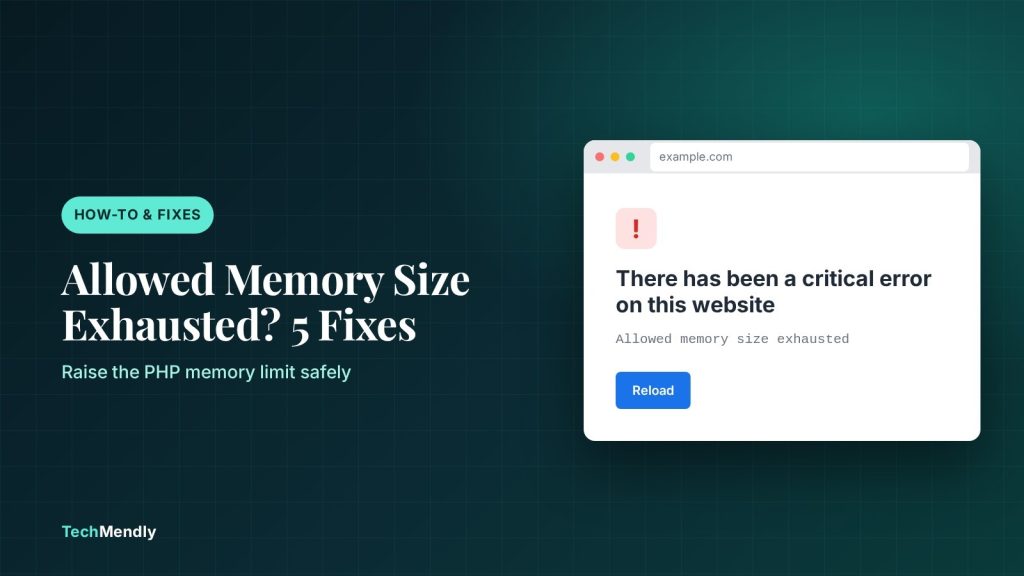
The “allowed memory size exhausted” error in WordPress means a PHP script asked for more memory than your site is allowed to use. Raise the limit with WP_MEMORY_LIMIT in wp-config.php or with MultiPHP INI Editor in cPanel, then find the plugin or task that is eating memory so the error does not come back.
The full message looks like this: Fatal error: Allowed memory size of 134217728 bytes exhausted (tried to allocate 20480 bytes). The number in the first set of digits is your current limit in bytes. 134217728 bytes is 128 MB, 67108864 is 64 MB and 33554432 is 32 MB.
On newer WordPress versions you may not see that text at all. You get a white page that says “There has been a critical error on this website”, and the real message goes to the admin email (subject line “Your Site is Experiencing a Technical Issue”) or to a log file. That is why the first job is to confirm that memory really is the problem.
Below is the order we use on client sites: confirm the error, raise the limit in the place your host actually honours, then fix the cause. If the whole site is returning a server error rather than a PHP message, the guide to the WordPress 503 Service Unavailable error is a better starting point.
What the allowed memory size exhausted error means
PHP gives every script a memory ceiling, set by the memory_limit directive. According to the PHP manual, this setting “helps prevent poorly written scripts for eating up all available memory on a server”, and the default value is 128M. When a page load, import, backup or cron job crosses that ceiling, PHP stops the script and prints the fatal error.
WordPress adds its own layer on top. It tries to raise PHP’s memory to 40 MB on a single site and 64 MB on multisite, and it has a separate, higher limit for admin tasks. The WordPress handbook notes that some hosts do not allow the limit to be raised automatically, and that in that case you need to ask the host.

| Setting | Where it lives | What it controls |
|---|---|---|
memory_limit |
php.ini, .user.ini, host control panel | The real PHP ceiling for every script on the account or domain |
WP_MEMORY_LIMIT |
wp-config.php | How much memory WordPress tries to use on normal page loads |
WP_MAX_MEMORY_LIMIT |
wp-config.php | The higher limit WordPress tries to use for admin tasks such as image resizing |
The key point: WordPress can only ask for more memory. If the server’s own memory_limit is lower, or the host enforces a hard cap, the line in wp-config.php changes nothing. That is the most common reason a fix “does not work”.
Step 1: Confirm memory is the cause
Do not raise limits blindly. Spend two minutes confirming what is failing.
- Open Tools > Site Health > Info > Server and note the PHP memory limit and the PHP version.
- Check the admin email for a message titled “Your Site is Experiencing a Technical Issue”. It names the plugin or theme file that crashed.
- If you have no email, turn on logging. Add the three lines below to wp-config.php above the line that says
That's all, stop editing!, reproduce the error, then readwp-content/debug.log.
define( 'WP_DEBUG', true );
define( 'WP_DEBUG_LOG', true );
define( 'WP_DEBUG_DISPLAY', false );
The WordPress handbook advises against running debug tools on production sites. Turn logging on only long enough to catch the error, then set WP_DEBUG back to false and delete debug.log, because it can contain file paths.
In the log, look for the words “Allowed memory size”. The path that follows tells you which plugin, theme or core file was running when memory ran out. Write that path down. You will use it in step 4.
Step 2: Raise the limit in wp-config.php
This is the fastest fix and works on many shared hosts. Back up wp-config.php first, then add this line above That's all, stop editing!:
define( 'WP_MEMORY_LIMIT', '256M' );If the error only appears in the dashboard, for example while importing or generating thumbnails, also add the admin limit. The handbook says this line has to sit before wp-settings.php is loaded, which is why it goes in the same block:
define( 'WP_MAX_MEMORY_LIMIT', '512M' );How much is enough? WooCommerce lists a WordPress memory limit of 256 MB or greater in its server requirements, and a 256 MB limit is also a common recommendation for most other sites. Going higher than you need only hides a leaking plugin, so start at 256M and raise it only if the log proves you need more.
Reload the page and check Site Health > Info > Server again. If the number did not change, your host is capping memory. Go to step 3.
Step 3: Change PHP memory_limit in cPanel or your host panel
When wp-config.php is ignored, the limit has to be raised where PHP itself reads it. On cPanel hosting, use MultiPHP INI Editor. Your host can disable this tool, and if you cannot find it, the cPanel documentation says to ask your host.
- In cPanel, open MultiPHP INI Editor.
- In Basic Mode, pick your domain from the “Configure PHP INI basic settings” menu.
- Set
memory_limitto256M. - Click Apply. In Editor Mode the button is Save.
Other hosts put the same setting under names like “PHP Options”, “PHP Settings” or “Select PHP Version”. If there is no panel option, you can add a line to a file called .user.ini in your site root:
memory_limit = 256MYou will also see advice to add php_value memory_limit 512M to .htaccess. That only works on Apache running PHP as a module. On PHP-FPM, LiteSpeed with LSAPI or Nginx, it can do nothing. Test it, and remove it straight away if the site breaks.
Never set memory_limit to -1 on a live site. The PHP manual says that value means no limit at all, so one runaway script can take the whole server down.
Step 4: Find the plugin or task using too much memory
Raising the limit is a patch. If a single admin page needs hundreds of megabytes, something is wrong. Use the path from your log to work out what.
- If the path contains
/wp-content/plugins/plugin-name/, that plugin was running when memory ran out. It is the likeliest cause, but not always the only one, so deactivate it and test. - If the path points to a theme, switch to a default theme temporarily and test.
- If it points to
wp-includesorwp-admin, a plugin has probably fed core a huge query or file. Deactivate plugins in batches.
No access to the dashboard? Rename the wp-content/plugins folder to plugins-off in File Manager or FTP. WordPress then treats every plugin as inactive and you can log in. Rename the folder back, then reactivate plugins one at a time until the error returns.

Tasks that legitimately need more memory
Some jobs are heavy by nature. These are worth knowing, because the right fix is to change how the task runs, not to raise the limit forever.
| Task | Why it uses memory | Better approach |
|---|---|---|
| Importing products or content | Large files loaded in one go | Split the CSV into smaller files |
| Uploading big images | WordPress resizes them into several sizes | Resize to a sensible width before uploading |
| Backup plugins | Archive created while the site runs | Exclude cache folders or run on a schedule off-peak |
| Page builders and large WooCommerce stores | Many widgets, products and queries per page | Raise to 256M and cache pages |
If the dashboard itself feels heavy, our guide to a slow WordPress admin shows how to use Query Monitor to find the plugin behind it. A page cache also cuts the memory used per visit, and we compare the free options in the best free WordPress caching plugin roundup.
Step 5: Check the result and watch for repeats
After the change, confirm each of these before you call it fixed:
- Site Health shows the new PHP memory limit.
- The action that failed, such as the import or update, now finishes.
- debug.log has no new “Allowed memory size” lines. Then turn debugging off.
- Your front end loads normally and the dashboard opens without a critical error.
If the error returns after a few days, a plugin is leaking memory or a scheduled task keeps running. Note the file path in the new log entry and compare it with the earlier one. A different path each time points to a host that is simply too small for the site. A path that repeats points to one plugin you should replace or ask the developer about.
Ask your host what the real memory ceiling is for your plan. Some shared plans cap PHP at a figure lower than the value you set, and no setting you change will get past that. If your site has outgrown the plan, upgrading is cheaper than hours of troubleshooting.
Common mistakes
The same few slips cause most failed fixes. Editing wp-config.php below the “stop editing” line means the setting loads too late. Setting a value in wp-config.php that is higher than the host cap changes nothing. Pasting the .htaccess line on a server that does not support it can take the site down. And leaving debug mode switched on afterwards can expose file paths to anyone who guesses the log URL.
Read the log to confirm it is a memory error, set WP_MEMORY_LIMIT to 256M, and if nothing changes raise memory_limit in cPanel’s MultiPHP INI Editor. Then find the plugin or task behind it, because a bigger limit only delays the next crash.
Frequently asked questions
How much PHP memory does WordPress need?
WordPress itself tries to run with as little as 40 MB, but real sites need more. WooCommerce asks for 256 MB or more, and 256 MB is a sensible starting point for most sites with a page builder or several plugins.
Why does my wp-config.php memory change not work?
WordPress can only request memory up to what the server allows. If PHP’s memory_limit or a hard host cap is lower, the line in wp-config.php is ignored. Raise the limit in your host panel or ask support.
Why do I only see a critical error and not the memory message?
Recent WordPress versions hide fatal errors from visitors. The details go to the admin email and to debug.log if logging is on, so check those to see the real message.
Is it safe to set memory_limit to -1?
Not on a live site. The PHP manual explains that -1 removes the limit completely, so a single faulty script can use all available memory and slow or crash the server.
Sources: WordPress wp-config.php handbook; Debugging in WordPress; PHP manual, core php.ini directives; cPanel MultiPHP INI Editor; WooCommerce server requirements; WPBeginner. Checked November 2026.
More in How-To & Fixes
WordPress “The Link You Followed Has Expired”: 5 Fixes
Seeing "The link you followed has expired" in WordPress? Find the upload limit or expired nonce behind it and fix it with the right PHP settings.
Error Establishing a Database Connection: 6 Fixes
Seeing "Error establishing a database connection"? Check wp-config.php, database privileges and repair tools in order, and know when to call your host.
WordPress Critical Error on This Website: 6 Fixes
Seeing "There has been a critical error on this website"? Use the recovery email, debug log and a plugin check to find the cause and fix it fast.