
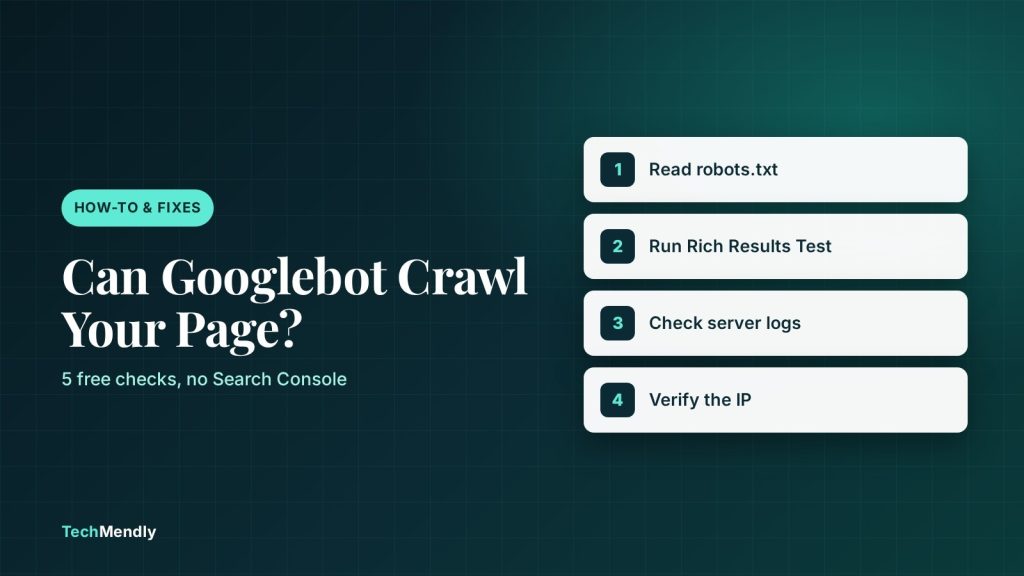
To check if Googlebot can crawl a page, test the exact URL in Google’s Rich Results Test (no Search Console needed) and look at the Crawl section: Crawl allowed?, Page fetch and Indexing allowed?. If you own the site in Search Console, run Test live URL in the URL Inspection tool instead. Then confirm in your server logs that real Googlebot requests are getting a 200.
A page can look perfect in your browser and still be invisible to Google. A stray robots.txt rule, a firewall that challenges crawlers, or a server that times out under load will all stop Googlebot, and you will not see any of it by just opening the page.
This guide shows five free ways to check if Googlebot can crawl a page, in the order we would run them, and what each result means. It works on WordPress, WooCommerce, Shopify, Squarespace or any other site, because the checks look at the URL, not the platform.
What “Googlebot can crawl this page” actually means
Google lists three minimum technical requirements for a page to be eligible for Search: Googlebot is not blocked, the page works (Google receives an HTTP 200 status code), and the page has indexable content. Crawling covers the first two. Indexing is a separate decision that comes afterwards.
That split matters, because the tools below report them separately. Here is what each field answers.
| Field | Question it answers | Healthy value |
|---|---|---|
| Crawl allowed? | Do your robots.txt rules let Google fetch this URL? | Yes |
| Page fetch | Could Google actually retrieve the page from your server? | Successful |
| Indexing allowed? | Does the page avoid a noindex directive? |
Yes |
Method 1: Read your robots.txt first
This takes 30 seconds and rules out the most common cause. Open https://yourdomain.com/robots.txt in a private browser window. Google says the file must sit at the root of the host it governs, be named exactly robots.txt, and be plain UTF-8 text.

Look for a Disallow: line under User-agent: * or User-agent: Googlebot that matches your page path. A single Disallow: / blocks the whole site. On WordPress, the “Discourage search engines from visiting this site” setting under Settings > Reading is a frequent culprit after a site launch, so check it too.
Robots.txt controls crawling, not indexing. Google’s own documentation says it is “not a mechanism for keeping a web page out of Google”. If you want a page kept out of Search, use noindex or password protection instead.
Method 2: How to check if Googlebot can crawl a page without Search Console
If you do not own the site in Search Console (a client’s site, a competitor, or a new domain you have not verified yet), the Rich Results Test is the tool to use. Google’s help page for checking whether a URL is available to Google points to it for exactly this case.
- Open Google’s Rich Results Test and paste the full URL, including
https://. - Click Test URL and wait for the result to load.
- Expand the Crawl section.
- Read the three results: Crawl allowed? should be Yes, Page fetch should be Successful, and Indexing allowed? should be Yes.
- Check the Page loading issues warnings. They list images, CSS or scripts that could not load, including ones blocked by robots.txt.
The test fetches the page as Google, not with your login, and uses the Google-InspectionTool user agent. It defaults to smartphone, and you can switch to desktop. If robots.txt blocks the URL, the page cannot be tested at all, which is itself your answer.
The Rich Results Test only needs the page to be reachable by an anonymous visitor. A staging site behind a password or a firewall will fail, and that is correct: Googlebot would fail too.
Method 3: Run a live test in URL Inspection
If you own the property, Search Console gives you the most detail. Inspect the URL in the search bar at the top, then click Test live URL. The page does not need to be indexed for this to work.

You can switch between Google Index (what Google saw last time) and Live Test (what it sees now). Then click View tested page to see the raw HTML, HTTP headers, JavaScript console output and loaded resources. The Screenshot tab is available only after a successful live test.
A passing live test does not guarantee indexing. Google states the test does not check everything, such as quality guidelines, manual actions or which duplicate page gets chosen as canonical.
Method 4: Check your server logs for real Googlebot visits
The tools above show what Google can do. Your logs show what it actually did. Googlebot runs on many distributed machines, so you will see requests from several IP addresses. Look for your page URL, the response status, and the user agent. Googlebot Smartphone identifies itself with Googlebot/2.1 and the link http://www.google.com/bot.html in the user agent.

Anyone can fake a user agent, so verify the IP before you trust a log line. Google documents this manual check:
- Run a reverse DNS lookup on the IP from your log, for example
host 66.249.66.1. - Confirm the returned hostname ends in
googlebot.com,google.comorgoogleusercontent.com. - Run a forward lookup on that hostname with
host. - Confirm it returns the original IP address.
On shared hosting, raw access logs are usually under Metrics > Raw Access in cPanel, though the exact label depends on your host. For bulk checks, Google also publishes IP range files in JSON format, such as common-crawlers.json, that you can match against.
Method 5: Check your firewall and Cloudflare
If robots.txt is clean but Page fetch fails, something between Google and your server is saying no. Typical suspects are a security plugin, a host-level firewall, or a CDN rule. Cloudflare says verified bots, which include search engine crawlers, have historically been excluded from default bot configurations on all plans, so a block usually means a custom rule or a challenge you added.
Open your firewall or Cloudflare security events log and filter for the URL and for the time of the failed test. A challenge page or a block entry tells you which rule fired. If you recently changed SSL modes, also read our guide to fixing the Cloudflare redirect loop, because a loop will make Page fetch fail too.
Sending a request from your own computer with a Googlebot user agent only tests rules that look at the user agent. Rules based on IP address or bot reputation will still treat you as an ordinary visitor, so a passing curl test does not prove Googlebot gets through.
What your results mean and how to fix them
| What you see | Likely cause | What to do |
|---|---|---|
| Crawl allowed? No | A robots.txt rule matches the URL | Remove or narrow the Disallow line, then retest |
| Page fetch: Failed | Firewall, host block, timeout or redirect loop | Check security logs and server error logs for that time |
| 401 or 403 response | Login wall or access rule | Allow the page publicly, because Google treats 401 and 403 like other 4xx errors |
| 404 response | Wrong URL or deleted page | Fix the URL or restore the page |
| 429 or 5xx response | Server overloaded or erroring | Fix the server issue, because Google slows crawling when it sees these |
| Indexing allowed? No | A noindex tag or header |
Remove it if the page should rank |
Google explains how it treats these status codes in its HTTP status code documentation. Persistent server errors can lead to URLs being dropped from the index over time, so do not leave a 5xx unresolved.
Common mistakes to avoid
Four mistakes cause a lot of avoidable crawl problems on small sites.
First, blocking a page in robots.txt and adding noindex to it. Google cannot read a noindex on a page it is not allowed to fetch, so the two rules work against each other. The URL Inspection tool even reports Indexing allowed? as Yes in this situation, because Google never sees the directive.
Second, using 401 or 403 responses to slow Googlebot down. Google specifically warns against this. Use a proper crawl rate approach instead.
Third, testing only the homepage. Test a real inner page, a product page and a blog post, because rules often differ by path.
Fourth, assuming a clean crawl means a page will rank. If crawling is fine but the page still does not show up, the next step is the sitemap. Our guide to fixing a Rank Math sitemap that is not updating covers that, and our September 2026 spam update checklist covers quality signals worth reviewing.
Frequently asked questions
How can I check if Google can crawl my website?
Paste a page URL into the Rich Results Test, click Test URL and expand the Crawl section. Crawl allowed? should say Yes and Page fetch should say Successful. With Search Console access, use Test live URL in the URL Inspection tool.
Can I test if Googlebot can crawl a page without Search Console?
Yes. The Rich Results Test works on any public URL and does not need you to own the property. Reading the site’s robots.txt and checking server logs also need no Search Console access.
What is the difference between crawling and indexing?
Crawling is Google fetching the page. Indexing is Google deciding whether to store it for Search. A page can be crawled and still not indexed, for example when it carries a noindex tag or fails quality checks.
How do I know a visitor is really Googlebot?
Do not trust the user agent alone. Run a reverse DNS lookup on the IP, check the hostname ends in googlebot.com, google.com or googleusercontent.com, then run a forward lookup and confirm it returns the same IP.
Does robots.txt stop a page appearing in Google?
Not reliably. A disallowed URL can still appear in results if other sites link to it, usually without a description. Use noindex or password protection to keep a page out of Search.
Start with robots.txt, then run the Rich Results Test or Test live URL, then confirm real Googlebot hits in your server logs. If Crawl allowed? is No, fix robots.txt. If Page fetch fails, look at your firewall, CDN and server errors. Recheck after every fix.
Sources: Google Search Essentials: technical requirements; Check if a URL is available to Google; URL Inspection tool; Rich Results Test; Verifying Googlebot; Robots.txt introduction; Create a robots.txt file; HTTP status codes and network errors; Google common crawlers; Google crawlers overview; Cloudflare verified bots. Checked October 2026.
More in How-To & Fixes
Squarespace Tax Not Showing at Checkout? 6 Fixes to Try
Squarespace tax not showing at checkout? Find the cause in your automated or manual setup, registrations or Include in price, and fix it in minutes.
WordPress REST API Returning Old Data? Fix the Cache
WordPress REST API returning old data? Find the cache serving stale JSON, then bypass /wp-json/ in Cloudflare, LiteSpeed or WP Rocket and purge it.

WooCommerce Showing Wrong Currency? 5 Fixes That Work
WooCommerce showing wrong currency? Find the setting, plugin, code snippet or cached page behind it and fix the symbol, prices and store location.