
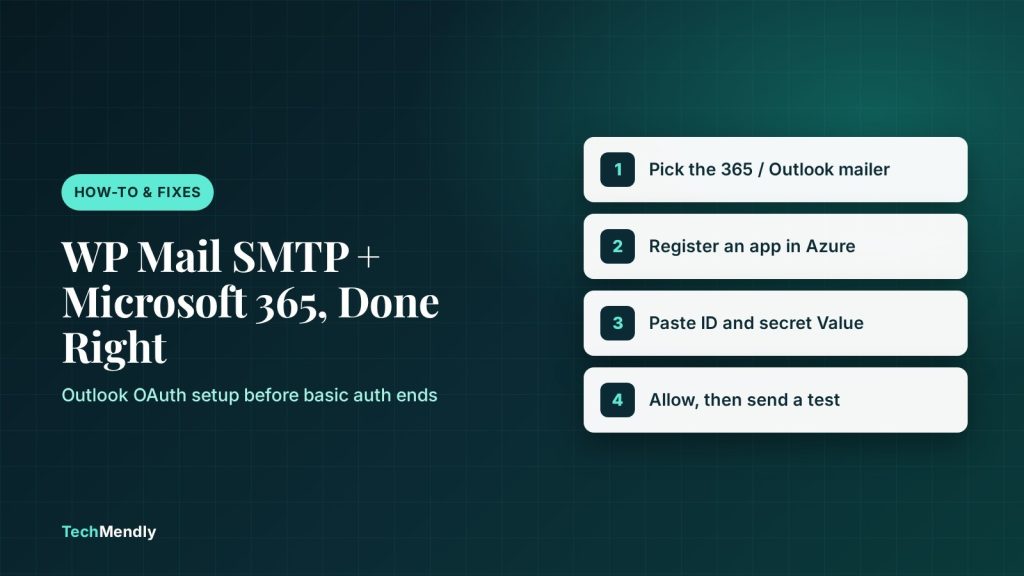
For a WP Mail SMTP Microsoft 365 setup that keeps working, use the plugin’s 365 / Outlook mailer, which signs in with Microsoft OAuth instead of a stored password. Register an app in the Azure portal, paste the plugin’s Redirect URI, create a client secret, then click Allow plugin to send emails using your Microsoft account. That mailer needs WP Mail SMTP Pro; on a free setup, FluentSMTP offers a similar Outlook connection at no cost.
If your WordPress site sends form messages, order emails or password resets through a Microsoft 365 or Outlook.com mailbox, the old way of doing it (host smtp.office365.com, your email address and a password) is running out of road. Personal Outlook accounts already lost password sign-in for third-party apps, and Microsoft 365 business tenants are next.
This guide walks through the WP Mail SMTP Microsoft 365 setup the way Microsoft now expects it: an OAuth connection through an app you register in Azure. We cover the exact fields, the two errors that catch most people, and what to do if you don’t have a Pro licence.
On client sites we’ve seen this fail quietly: forms still show a success message, and nobody notices the enquiries stopped until a customer phones.
Why password-based Microsoft 365 SMTP is ending
Microsoft calls username-and-password sign-in “basic authentication” and is retiring it across its email services. The replacement is OAuth 2.0: you approve an app once, and it signs in with a token you can revoke instead of your password.
| Account type | Basic auth (password) status | What to use instead |
|---|---|---|
| Outlook.com, Hotmail, Live (personal) | Microsoft set 16 September 2024 as the date basic authentication stopped working for Outlook accounts | An OAuth mailer (WP Mail SMTP 365 / Outlook, or FluentSMTP) |
| Microsoft 365 business, existing tenant | Still works today, but Microsoft plans to disable SMTP AUTH basic authentication at the end of December 2026. Admins can switch it back on for a while; a final removal date is due to be announced in the second half of 2027 | An OAuth mailer now, so you aren’t relying on a temporary re-enable |
| Microsoft 365 business, new tenant (from January 2027) | Basic authentication for SMTP AUTH won’t be available at all | An OAuth mailer from day one |
WP Mail SMTP’s own documentation now warns that emails will stop sending if you use Outlook or Hotmail with the generic Other SMTP mailer, and points users to its dedicated Microsoft mailer. If you followed an older tutorial that used smtp.office365.com, port 587 and TLS with a password or app password, that’s the setup to replace.

What you need before you start
- WP Mail SMTP Pro (or higher). The plugin listing on WordPress.org labels the Microsoft integration as Pro, and the setup guide says the 365 / Outlook mailer requires a Pro licence. If you’re on the free version, skip to the FluentSMTP section below.
- HTTPS on your site. WP Mail SMTP requires SSL for this mailer.
- A Microsoft account that can send mail, ideally the same address you want as your From Email.
- Access to the Azure portal for the manual setup. WP Mail SMTP’s guide notes Microsoft may ask for a card or a Pay-as-you-go subscription before you can create apps.
Short on time? WP Mail SMTP 4.3 and later has a One-Click Setup option that skips Azure. It’s covered after the manual steps.
Step 1: Choose the 365 / Outlook mailer in WP Mail SMTP
- Go to WP Mail SMTP » Settings and stay on the General tab.
- In the Mailer section, select 365 / Outlook. A new 365 / Outlook section appears below it.
- Leave From Email for now and make sure One-Click Setup is off.
- Find the Redirect URI field in that section and copy it. Keep this tab open; you’ll come back to paste two values.
Step 2: Register an app in the Azure portal
Take your time here: a wrong option on this screen causes most failed connections.
Create the app registration
- Sign in to the Azure portal with your Microsoft account, type App registrations in the top search bar and open it.
- Click + New registration.
- Name: anything you’ll recognise later, for example
WP Mail SMTP: yourdomain.com. - Supported account types: choose Accounts in any organizational directory and personal Microsoft accounts. If your account doesn’t show that option, choose Accounts in any organizational directory (Any Azure AD – Multitenant).
- Redirect URI: leave the platform dropdown on Web and paste the Redirect URI you copied from WP Mail SMTP into the second field.
- Click Register. On the app’s Overview page, copy the Application (client) ID.
Open the app’s Authentication tab once and confirm the account type and Redirect URI saved exactly as intended. A single missing character or an http instead of https is enough to break the sign-in later.
Create the client secret
- In the app’s left menu, open Manage » Certificates & secrets and click + New client secret.
- Add a description (for example
wp-mail-smtp) and set Expires. WP Mail SMTP’s guide uses 730 days (24 months). - Click Add, then copy the text in the Value column straight away. Do not copy the Secret ID; it looks similar but won’t work.
- Store the value somewhere safe. Azure won’t show it again once you leave the page.
Put the secret’s expiry date in your calendar. When it runs out you’ll need to create a new secret, paste it into WP Mail SMTP and re-authorise, and it’s easy to forget an app you set up two years ago.

Step 3: Finish the WP Mail SMTP Microsoft 365 connection
- Back in WP Mail SMTP, paste the client ID into Application ID and the secret value into Application Password.
- Click Save Settings at the bottom of the page.
- Scroll to the Authorization section and click Allow plugin to send emails using your Microsoft account.
- Sign in with the mailbox you want to send from and click Yes on Microsoft’s permissions screen. If it says admin approval is required, a Global Administrator in your Microsoft 365 tenant has to approve the request first.
- You’ll land back on the settings page with a notice that the account is connected. The Authorization section now shows the connected name and email address.
- Set From Email to that exact address and tick Force From Email. Save again.
Note that this mailer can’t change the From Name; emails use the Microsoft account’s display name.
The One-Click Setup alternative
If you’d rather not touch Azure, WP Mail SMTP Pro (version 4.3 or later) has a shortcut. Enter your From Email, choose 365 / Outlook, switch One-Click Setup on, click Save Settings, then click Sign in with Microsoft and Accept. Sign in with the same account as the From Email, or you’ll get an “Invalid state” error. One-Click depends on an active licence, so if the subscription lapses the connection can stop and you’ll need to renew and click Reconnect.
Free option: FluentSMTP with Outlook or Office 365
FluentSMTP is a free plugin with its own Outlook or Office 365 connection that also uses OAuth. The Azure side is almost identical.
- Go to Settings » FluentSMTP, choose Outlook or Office 365 (or Add Connection first) and copy the App Callback URL. With pretty permalinks it ends in
/wp-json/fluent-smtp/outlook_callback. - In Azure, create a new app registration exactly as in Step 2, but paste FluentSMTP’s App Callback URL as the Web Redirect URI.
- Create a client secret and copy its Value.
- In FluentSMTP, paste the Client ID and Client Secret. Leave Directory (tenant) ID empty unless you registered a single-tenant app.
- Click Authenticate with Office365, approve the request, then copy Your Access Code from the pop-up into the Access Token field.
- Click Save Connection Settings and confirm it shows “Outlook / Office365 is connected”.
WP Mail SMTP Pro (365 / Outlook)
- One-Click Setup if you want to skip Azure
- Optional Backup Connection if Microsoft fails
- Step-by-step docs from the plugin team
FluentSMTP (free)
- Microsoft OAuth connection at no cost
- Manual Azure app registration is always required
- Extra copy-and-paste step for the access code
Neither plugin changes your form settings. If a form uses the visitor’s email as the From address, fix that too; our guide to WordPress contact form emails not arriving covers the form-side settings for Contact Form 7, WPForms and Elementor Forms.
Fix common WP Mail SMTP Outlook errors
Most failures are a mismatch between Azure and the plugin:
| Error or symptom | Likely cause | Fix |
|---|---|---|
AADSTS50011: The redirect URI ... does not match |
The Redirect URI in Azure differs from the one in the plugin | Open the app’s Authentication tab, paste the plugin’s Redirect URI exactly, then Remove Connection and authorise again |
AADSTS7000215: Invalid client secret provided |
The Secret ID was pasted instead of the Value, or the secret was replaced | Create a new client secret, paste its Value into Application Password, remove the connection and re-authorise |
ErrorSendAsDenied |
The From Email isn’t the connected account | Make them match, or give the account Send As rights for that address in Microsoft 365 |
MailboxNotEnabledForRESTAPI |
The mailbox isn’t a Microsoft 365 cloud mailbox (for example on-premises Exchange) | Connect a licensed Microsoft 365 mailbox instead |
| “Invalid state” (One-Click) | Signed in with a different account to the From Email | Sign in with the account that matches the From Email |
| Admin approval required | Your tenant blocks users from consenting to apps | A Global Administrator approves the app or sets up the admin consent workflow |
| Worked, then stopped after a password change or turning on MFA | The saved authorisation is no longer valid | Click Remove Connection in the Authorization section, then authorise again |
Moved your DNS recently and mail problems started at the same time? That’s usually a DNS record issue rather than the plugin; see email not working after switching to Cloudflare.
Still on smtp.office365.com? What to check before December 2026
If your Microsoft 365 mailbox still sends through Other SMTP with a password, it works only because basic authentication hasn’t been switched off yet. Two things to know:
- Authenticated SMTP is a per-mailbox switch. In the Microsoft 365 admin center it’s under Users » Active users, select the user, Mail, Manage email apps, Authenticated SMTP. Microsoft says it has already disabled SMTP AUTH in tenants where it wasn’t being used, which is why some brand-new mailboxes never worked with the old method.
- Re-enabling is a stopgap. Microsoft’s updated plan lets admins reverse the end-of-2026 block for existing tenants, but it has said a final removal date will follow. Moving to OAuth now means one change instead of two.
Test and confirm it’s working
- Go to WP Mail SMTP » Tools, open Email Test, enter an address on a different provider (a Gmail address works well) and click Send Email.
- Look for the success message in the plugin, then check the message arrived in the inbox, not spam.
- In Gmail, open the message, choose Show original and confirm SPF, DKIM and DMARC say PASS. If you send from your own domain, the domain needs Microsoft 365’s SPF and DKIM records.
- Submit your real contact form once and check that message arrives too.

For a reliable WP Mail SMTP Microsoft 365 setup, stop using a password with smtp.office365.com and switch to the 365 / Outlook mailer: register an Azure app, paste the Redirect URI, copy the secret’s Value, authorise, and match the From Email. No Pro licence? FluentSMTP does the same OAuth connection for free. Do it before Microsoft disables basic authentication at the end of December 2026, and diarise the client secret’s expiry date.
Frequently asked questions
Is the WP Mail SMTP Outlook mailer free?
No. WP Mail SMTP lists its Microsoft integration as a Pro feature, and the 365 / Outlook setup guide says a Pro licence or higher is required. The free version can still use Other SMTP, but that relies on a password, which Microsoft is retiring. FluentSMTP is a free alternative with an Outlook or Office 365 OAuth connection.
Can I still use smtp.office365.com with a password in WordPress?
Not for personal Outlook.com or Hotmail accounts. Microsoft 365 business mailboxes may work until basic authentication is disabled at the end of December 2026, and only if Authenticated SMTP is enabled for that mailbox.
Why can’t I change the From Name with the Outlook mailer?
WP Mail SMTP’s documentation says this mailer doesn’t support it. Emails use the connected account’s display name, so change it in Microsoft 365.
Can WordPress send from a shared mailbox like info@ through Microsoft 365?
Yes, if the connected account has permission to send as that shared mailbox in Microsoft 365. Grant Send As rights first, then set that address as the From Email. Without the permission you’ll see ErrorSendAsDenied.
What happens when the Azure client secret expires?
Create a new client secret in Certificates & secrets, paste the new Value into the plugin, and re-authorise. A reminder a few weeks before expiry avoids a silent outage.
Comparing form plugins while you’re sorting out email? Our Contact Form 7 vs WPForms comparison covers how each handles notifications.
Sources: WP Mail SMTP: Microsoft 365 / Outlook.com mailer setup; WP Mail SMTP: One-Click Setup; WP Mail SMTP: Other SMTP mailer; WP Mail SMTP on WordPress.org; FluentSMTP: Set up Outlook; Microsoft Learn: Enable or disable SMTP AUTH; Microsoft Learn: Basic authentication deprecation; Microsoft Exchange Team: Updated SMTP AUTH timeline; Microsoft Support: Modern authentication for Outlook.com; Office 365 for IT Pros: SMTP AUTH retirement delayed; SendLayer: AADSTS50011; SendLayer: invalid client secret. Checked October 2026.
More in How-To & Fixes

WordPress “The Link You Followed Has Expired”: 5 Fixes
Seeing "The link you followed has expired" in WordPress? Find the upload limit or expired nonce behind it and fix it with the right PHP settings.
Error Establishing a Database Connection: 6 Fixes
Seeing "Error establishing a database connection"? Check wp-config.php, database privileges and repair tools in order, and know when to call your host.
WordPress Critical Error on This Website: 6 Fixes
Seeing "There has been a critical error on this website"? Use the recovery email, debug log and a plugin check to find the cause and fix it fast.