
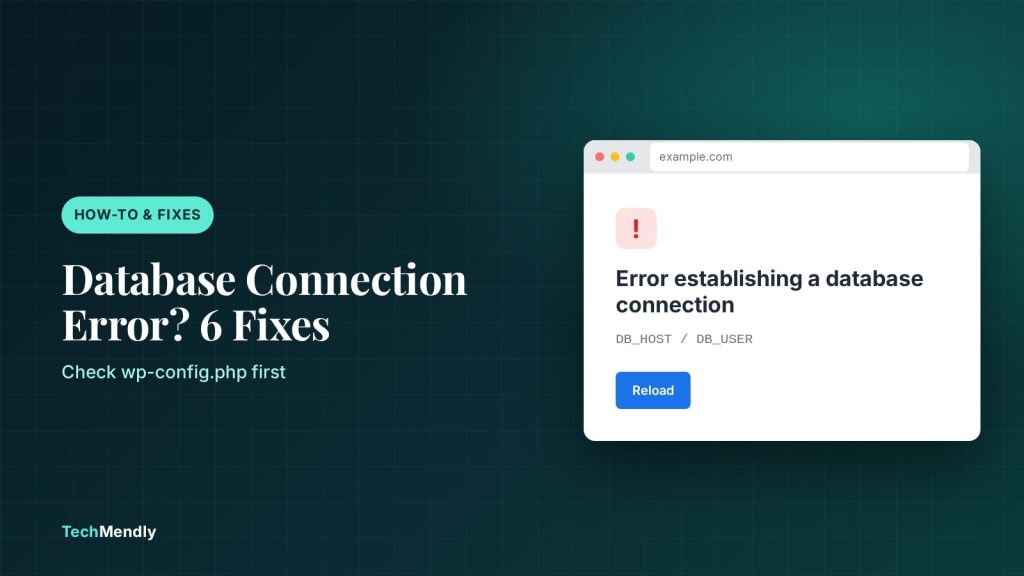
“Error establishing a database connection” means WordPress could not log in to its database. Start with the four database values in wp-config.php (name, user, password, host) and compare them with what your host shows. If they match, check that the database user still has privileges, then run the built-in repair tool, and ask your host if the database server itself is down.
You open your site and instead of your homepage there is one plain line of text: Error establishing a database connection. Your wp-admin shows the same message, so you cannot even log in to look around.
Every WordPress page is built from data stored in a MySQL or MariaDB database. When PHP cannot connect to that database, WordPress has nothing to build the page from and stops. The good news is that the cause is usually one of a short list, and you can check them in a sensible order without touching your content.
This guide walks through six checks, from the most common to the least. If you would rather see a different white or error screen, our guides to the WordPress critical error and the 503 Service Unavailable error cover those.
What “error establishing a database connection” actually means
WordPress reads four values from wp-config.php every time a page loads: DB_NAME, DB_USER, DB_PASSWORD and DB_HOST. If any one is wrong, or the database server does not answer, you get this message. WordPress’s own installation guide says you should enter the exact database name, username, host and password you created for the site in that file.
That gives us three broad families of cause: the credentials in the file no longer match, the database user lost its access, or the database or its server has a problem. The table below maps the symptom to the first thing to check.
| What you see | Likely cause | Start with |
|---|---|---|
| Error began right after a migration, restore or host change | Wrong name, user, password or host in wp-config.php |
Fix 1 and Fix 2 |
| Error began after you changed a password in cPanel | DB_PASSWORD is out of date |
Fix 1 |
| Front end and wp-admin both show the same message | Credentials, privileges or database server | Fix 1 to Fix 3 |
| Credentials are right but the error stays, or the debug log names a table | Damaged database tables | Fix 4 |
| Comes and goes, other sites on the same host are slow too | Database server overloaded or down | Fix 5 |
Before you change anything, download a copy of wp-config.php and, if you can still reach it, take a database export in phpMyAdmin. A typo in this file can turn a small problem into a bigger one. If you do not have a backup routine yet, see our UpdraftPlus vs Duplicator comparison.
Fix 1: Check the database credentials in wp-config.php
This is the first check because it is the cheapest, and WordPress’s own guide lists these four values as the ones you must get exactly right. Open wp-config.php in your hosting File Manager or over FTP. It sits in the folder where WordPress is installed, usually public_html.
- Find the four lines starting
define( 'DB_NAME',DB_USER,DB_PASSWORDandDB_HOST. - In cPanel, open MySQL Databases and compare the database name and username exactly. Many hosts add your account name and an underscore as a prefix, so
shopin the file will not matchmyaccount_shopon the server. - cPanel never shows you the current password. If you are not sure it is right, scroll to Current Users, click Change Password for that user, enter a new password and save it.
- Paste the same new password into
DB_PASSWORDinwp-config.php, save the file and reload your site.
Watch for invisible damage: a password with a quote or backslash in it, a space pasted at the end, or a smart quote added by a text editor. Use a plain-text editor and straight quotes only.
Fix 2: Confirm the DB_HOST value
WordPress’s database guide says the host is usually localhost, and that in phpMyAdmin you can see the server name after “Server:” at the top of the page. Some hosts run the database on a separate server, in which case DB_HOST is a different hostname that your host gives you.
If you moved the site to a new host, this is the line people forget. The old value may have been correct for the old server and be wrong for the new one. Check the new host’s welcome email or knowledge base, or ask support for the exact database host name.
Fix 3: Make sure the database user has privileges
A user can exist and still be locked out of the database. This happens when a database is restored or recreated and the user is not attached to it again. In cPanel the steps are:
- Open MySQL Databases and go to Add User To Database.
- Choose the user and the database from the menus and click Add.
- On the MySQL Account Maintenance screen tick ALL PRIVILEGES, then click Make Changes.
A quick test: try logging in to phpMyAdmin with the same database user and password. If that login fails, the problem is the account, not WordPress.
Fix 4: Repair damaged database tables
If the credentials are right and the connection works but WordPress still complains, a table may be damaged. You have two safe ways to repair.
Option A: Repair in cPanel
In MySQL Databases, scroll to Modify Databases. Pick your database in Check Database and click the button. If it names a corrupt table, choose the same database in Repair Database and click the button. A “Repair Complete” message means the repair worked.
Option B: Use WordPress’s built-in repair page
- Add this line to
wp-config.php, above the line that says to stop editing:define( 'WP_ALLOW_REPAIR', true ); - Visit
https://yoursite.com/wp-admin/maint/repair.phpand choose the repair option. - Remove the line from
wp-config.phpas soon as you are done.
The repair page does not require you to be logged in, because it exists for sites where login is broken. WordPress’s own documentation says to enable it only when needed and disable it once the issue is solved. Leaving it on is an open door for anyone who finds the URL.
Fix 5: Check whether the database server is down
If your credentials, privileges and tables are fine, the database server itself may be down or overloaded, which can happen on busy shared hosting. Signs are that the error appears and disappears, or that other sites on the same account fail too.
You cannot fix this yourself on shared hosting. Open a ticket with your host, say you get “Error establishing a database connection”, and ask them to check whether the MySQL or MariaDB service is running and whether your account has hit a connection or resource limit. If your site also shows memory messages, read WordPress allowed memory size exhausted next, since both can come from the same overloaded account.
Fix 6: Turn on the debug log for a clue
If you are still stuck, ask WordPress to write its errors to a file. WordPress’s debugging guide gives these three lines for wp-config.php:
define( 'WP_DEBUG', true );define( 'WP_DEBUG_LOG', true );define( 'WP_DEBUG_DISPLAY', false );
Reload the broken page once, then open wp-content/debug.log. The last lines often name the failing query or the missing table. Remove the three lines when you finish, and delete the log file, because public log files can expose paths and other details.
After it is fixed: what to check
- Load the homepage in a private window and log in to wp-admin.
- Confirm
WP_ALLOW_REPAIRand the debug lines are gone fromwp-config.php. - If you use a caching plugin, purge it so visitors do not keep seeing the old error page. Our slow wp-admin guide covers a few cache and cron checks.
- Take a fresh backup now that the site works.
Common mistakes to avoid
Do not reinstall WordPress to “fix” this error, because it does not address the cause. Do not change the table prefix in wp-config.php unless you know it changed, because WordPress then looks for tables that do not exist. And do not leave a password in a file you email around, since wp-config.php holds your database login in plain text.
Check the four DB_ values against your host first, confirm the user is attached to the database with all privileges, then repair the tables and, if that fails, ask your host about the database server. Remove the repair and debug lines when you are done.
Frequently asked questions
What causes “Error establishing a database connection” in WordPress?
WordPress cannot log in to its database. The usual reasons are wrong credentials in wp-config.php, a database user without privileges, damaged tables, or a database server that is down.
Will I lose my posts and pages?
Not from the error itself. Your content lives in the database, which is still there, only unreachable. Take a backup before you start editing files or running repairs.
What should DB_HOST be?
WordPress’s documentation says it is usually localhost. Some hosts use a separate database server with its own host name, so confirm the value with your host after a migration.
Is it safe to leave WP_ALLOW_REPAIR on?
No. The repair page does not require a login, so WordPress’s own documentation says to enable it only when needed and disable it afterwards.
Can a plugin cause this error?
A plugin can overload or damage the database, but the error itself is a connection failure. Check credentials and the database server before you start deactivating plugins.
Sources: WordPress wp-config.php guide; Debugging in WordPress; Creating a database for WordPress; cPanel MySQL Databases. Checked November 2026.
More in How-To & Fixes
WordPress “The Link You Followed Has Expired”: 5 Fixes
Seeing "The link you followed has expired" in WordPress? Find the upload limit or expired nonce behind it and fix it with the right PHP settings.
WordPress Critical Error on This Website: 6 Fixes
Seeing "There has been a critical error on this website"? Use the recovery email, debug log and a plugin check to find the cause and fix it fast.
WordPress Allowed Memory Size Exhausted: 5 Fixes
Allowed memory size exhausted in WordPress? Confirm the cause in the log, raise the PHP memory limit in wp-config.php or cPanel, then find the plugin behind it.