
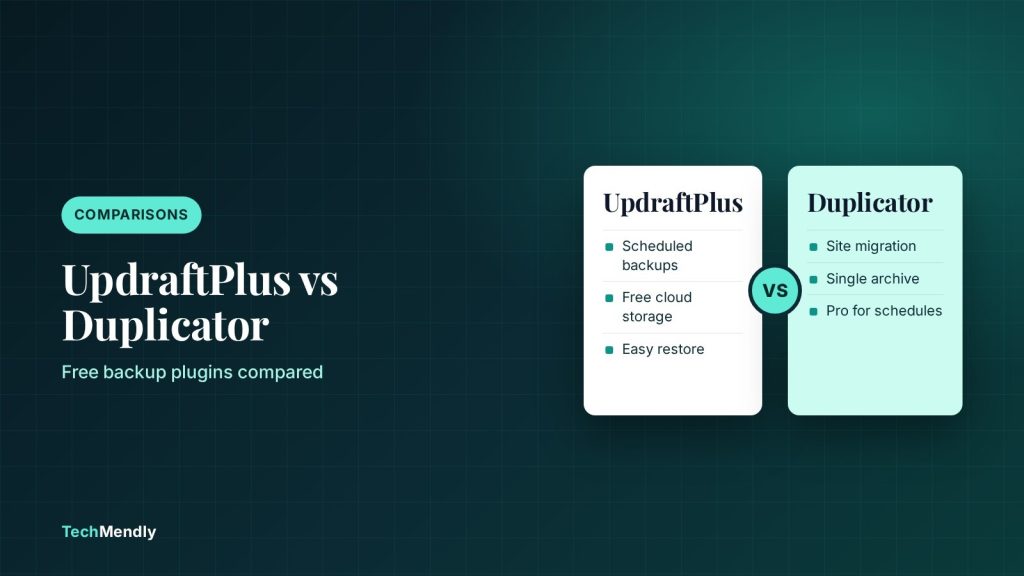
In the UpdraftPlus vs Duplicator decision, pick UpdraftPlus if you want automatic scheduled backups sent to Google Drive, Dropbox or Amazon S3 for free. Pick Duplicator if your main job is moving or cloning a site, because scheduled backups and most cloud storage are Pro features there.
Most site owners install a backup plugin once, tick a box and forget about it. That works until the day a plugin update breaks the site and the “backup” turns out to be a single manual copy from three months ago.
UpdraftPlus and Duplicator are two of the best known free options on WordPress.org, and they look similar at first. They are built for different jobs, though. Below we compare the free versions, show what each paid plan adds, and give you a simple way to choose. If you also want a copy outside your hosting account, our guide to portable SSD vs external hard drive for backups covers the 3-2-1 idea.
What each plugin is really built for
UpdraftPlus is a backup-first plugin. You set a schedule, choose a remote location, and it keeps copies there while you get on with your work. Its WordPress.org page lists version 1.26.14 (released 26 October 2026), more than 4 million active installs and a tested-up-to value of WordPress 7.1.4.
Duplicator started life as a migration tool. It packages your files and database into one archive plus an installer, so you can clone a site to a new host or a staging domain. The current Lite release is 5.1.1, with more than 1 million active installs. It needs PHP 7.4 or higher and WordPress 6.2 or higher.

That difference in purpose explains almost everything below. Both can back up a site and both can restore it, but one is designed around “keep copying this every day” and the other around “package this so I can move it”.
UpdraftPlus vs Duplicator: free features side by side
This table comes from the two plugins’ WordPress.org listings, checked in November 2026.
| Feature | UpdraftPlus (free) | Duplicator Lite (free) |
|---|---|---|
| Scheduled backups | Yes: every 2, 4, 8 or 12 hours, or daily, weekly, fortnightly, monthly | No, scheduled backups are listed as Pro |
| Remote storage | Dropbox, Google Drive, Amazon S3 or compatible, Rackspace, FTP, DreamObjects, OpenStack Swift, email | Local storage and Duplicator Cloud; Dropbox, Google Drive, OneDrive, S3 and FTP/SFTP are Pro |
| One-click restore | Restore from the dashboard, choosing plugins, themes, database and so on | 1-click restore from the dashboard |
| Migration | Built-in search and replace; you download and upload the pieces | Single archive plus installer, designed for moving sites |
| Encryption | Database encryption is Premium | AES-256 password protection on archives |
| Backup before updates | Premium | Not listed in the free feature set |
| Staging sites | Included in Premium plans | Pro |
| Failure email alerts | Reports with checksums are Premium | Pro |
The first two rows decide most cases. A free UpdraftPlus install can run every night and push the archive to Google Drive without paying anything. Duplicator Lite gives you a good manual package, but the schedule and the remote destinations sit behind the paywall.

Best for scheduled backups: UpdraftPlus
If you only care about a safety net, UpdraftPlus free covers the essentials. A sensible starting setup for a small business site is a daily database backup and a weekly full backup, both sent to Google Drive or Dropbox.
- Install UpdraftPlus from Plugins > Add New and activate it.
- Open Settings > UpdraftPlus Backups and go to the Settings tab.
- Set the files schedule to weekly and the database schedule to daily, then choose how many copies to retain.
- Pick a remote storage option such as Google Drive and complete the authorisation prompt.
- Save, go back to the Current Status tab and click Backup Now once to confirm the whole chain works.
Do not leave the only copy on the same hosting account. If the server fails or the account is suspended, local backups go with it. A remote destination is the point of the exercise.
On a busy WooCommerce store, a daily full backup can be heavy on a shared plan. If a backup stalls or you see memory errors while it runs, read our guide to the allowed memory size exhausted error before you blame the plugin.
Best for moving or cloning a site: Duplicator
Duplicator earns its place when you are changing host, building a staging copy by hand, or handing a finished site to a client. It bundles the site into one archive and gives you an installer that rebuilds it on the destination, including database details and URLs. The free version supports backups of any size through a chunked engine, and partial backups for database-only or media-only needs.
That makes it a strong fit for web developers who move sites often. For a site that simply needs nightly copies, the lack of a free schedule is the deal breaker.
UpdraftPlus can migrate too, and its free version includes a search-and-replace engine for changing the domain. Its direct site-to-site migration is a Premium feature, so the free route means downloading the backup and uploading it on the new site yourself.
What the paid plans cost
Prices change, so check the vendor pages before buying. These are the figures shown on each vendor’s pricing page when we checked in November 2026.
| Plugin | Plan | Sites | List price |
|---|---|---|---|
| UpdraftPlus Premium | Personal | Up to 2 | $70 per year |
| UpdraftPlus Premium | Business | Up to 10 | $95 per year |
| UpdraftPlus Premium | Agency | Up to 35 | $145 per year |
| UpdraftPlus Premium | Enterprise | Unlimited | $195 per year |
| Duplicator Pro | Basic | 2 | $79 |
| Duplicator Pro | Plus | 5 | $199 |
| Duplicator Pro | Pro | 20 | $399 |
UpdraftPlus bills yearly and says that if you let a subscription lapse you keep Premium but lose support and updates. Duplicator’s pricing page does not state the billing period next to the plan prices, so confirm it at checkout. On Duplicator, Basic already adds scheduled backups and one cloud destination, while unlimited cloud destinations start at the Plus plan. On UpdraftPlus, all paid plans carry the full Premium feature set, including incremental backups and storing backups in several locations.
How to test a restore without risking your live site
A backup you have never restored is a guess. The good news is that a test takes less than an hour, and it tells you whether the plugin, the storage and your hosting limits all work together.
The safest route is to restore onto a copy, not the live site. Create an empty subdomain or a local WordPress install, and run the restore there. With Duplicator, that is exactly what the archive and installer pair are designed for. With UpdraftPlus, install the plugin on the empty site, point it at the same remote storage and use its restore option to pull the backup down.
Once the restore finishes, check the things that usually break first:
- Open the home page and two or three inner pages, and confirm images and layouts load.
- Log in to the admin area and check that your plugins and theme are all present.
- Submit a contact form or place a test order, if the site has one, to confirm the database came back whole.
- Look at Settings > Permalinks and save once, so pretty URLs work on the new copy.
- Write down how long the restore took, so you know what to expect in a real emergency.
Keep the test copy private. Block search engines on a staging subdomain and delete it afterwards so a duplicate of your site never gets indexed by accident.
If the restore fails, that is useful news. Common causes are a backup that was cut short by a time limit, a storage upload that never finished, or a PHP memory limit that is too low on the new host. Fix the cause now, while nothing is on fire.
Common mistakes with both plugins
Whichever you pick, a few habits matter more than the plugin itself.
- Keeping backups only on the server. Always send a copy to a remote destination.
- Never testing a restore. A file that looks fine can still fail when you need it.
- Backing up right before a risky update and then not keeping that copy. After a security release such as WordPress 7.1.4, keep the pre-update copy for a few days.
- Running heavy backups at peak traffic hours. Schedule them overnight in your visitors’ time zone.
- Leaving the cache in place after a restore. Purge it, as covered in our free caching plugin comparison.
Which one should you choose?
Choose UpdraftPlus if
You want an automatic safety net for free
- You want daily or weekly backups with no paid plan
- Your storage is Google Drive, Dropbox or S3
- You manage a small business or blog site
Choose Duplicator if
You move or clone sites
- You are changing host or building a staging copy
- You want one archive and an installer
- You are happy to run backups by hand, or pay for Pro scheduling
Plenty of developers keep both: UpdraftPlus for the nightly copies and Duplicator for the day a site has to move. Installing two backup plugins on one live site adds load, so only keep the second one active while you are using it.
For ongoing protection, UpdraftPlus free is the better starting point because it schedules backups and sends them to common cloud services at no cost. Duplicator Lite is the better tool for migrations and clones, but scheduling and most cloud destinations need Pro. Whichever you use, test a restore.
Frequently asked questions
Is UpdraftPlus better than Duplicator?
For regular scheduled backups, yes, because the free version can run on a schedule and upload to several cloud services. For packaging a site to move it, Duplicator is built for that job.
Can I use UpdraftPlus and Duplicator together?
You can, and some developers do. Keep one active for scheduled backups and use the other only during a migration, so you are not running two heavy plugins on a live site all the time.
Does the free Duplicator schedule automatic backups?
According to its WordPress.org page, scheduled backups are a Pro feature. Lite creates backups when you run them.
Which free backup plugin is easier for beginners?
UpdraftPlus is usually simpler for a first backup, since the schedule and storage choices sit in one Settings tab. Duplicator has an extra installer step that suits people who are comfortable moving files and databases.
Sources: UpdraftPlus on WordPress.org; Duplicator on WordPress.org; UpdraftPlus Premium pricing; Duplicator Pro pricing. Checked November 2026.
More in Comparisons
Turnstile vs reCAPTCHA for Contact Form 7: Which to Use?
Turnstile vs reCAPTCHA for Contact Form 7: compare setup, free limits and costs, then follow the steps to switch. See which one fits your WordPress site.
LiteSpeed Cache vs WP Rocket: Which Should You Use?
LiteSpeed Cache is free but needs a LiteSpeed server for page caching. WP Rocket is paid and works on any host. See which one fits your site best.
FluentSMTP vs WP Mail SMTP: Which Free Plugin Wins?
FluentSMTP vs WP Mail SMTP: see what each free plugin includes, what Pro costs, and which suits Gmail or Microsoft 365 sites best.