
On 13 November 2026 WordPress.org announced Reprint, a free, open-source tool that copies a WordPress site’s files and database to a laptop, a test server or a new host. The WordPress Reprint plugin goes on the source site, and a command-line client pulls the copy after you authorize it. It is new (plugin version 0.11.8), so use it for test copies first and treat host moves with care.
If you have ever moved a site to a new host, you know the usual routes: a backup plugin, a host’s migration service, or a manual files-plus-database copy. The WordPress Reprint plugin is the project’s own answer, announced on the WordPress News blog by Adam Zieliński.
It is aimed at two jobs: moving a site to another host while the old one keeps serving visitors, and making a local or test copy so you can try layout changes, test plugins or check a site after a WordPress update. Here is what it does, what it needs, and the order we would follow before trusting it with a live site.
What the WordPress Reprint plugin does
Reprint has two halves. The Reprint Server plugin runs on the site you want to copy. The Reprint client runs on the computer or server that receives the copy. The client downloads files and database content over HTTPS, one piece at a time, directly to the destination. There is no Reprint cloud service in the middle, and no account to create.
The WordPress.org announcement lists the main behaviours:
- The old host does not need to build a full-site archive first.
- If the connection drops, the copy resumes from the last saved point.
- If the copy gets a new address, links are rewritten in site settings, blocks, shortcodes and serialized data, without corrupting tables.
- On repeat copies, only the files that changed are transferred.

The plugin listing shows version 0.11.8, tested up to WordPress 7.1.4, with 40+ active installations when we checked. That is early. Expect changes, and read the handbook before relying on it.
What you need before you start
Requirements are split between the site you copy and the machine that receives the copy. These come from the Reprint handbook.
| Side | Requirement |
|---|---|
| Source site | WordPress 4.7 or newer, PHP 5.6.20 or newer, permission to install plugins, and a working HTTPS address. SSH is not needed. |
| Client computer | PHP 7.4 or newer with the curl, hash, json, mbstring, openssl, PDO and zlib extensions, plus pdo_sqlite (SQLite) or mysqli (MySQL). |
| Terminal | macOS, Linux or WSL on Windows. Native Windows PHP can run most pull commands, but push and the Bash start script need WSL, macOS or Linux. |
| Download | reprint.phar from WordPress.org. Git and Composer are not required. |
| Database (MySQL option) | A reachable MySQL server and an empty destination database. |
How to authorize a Reprint client
Installing the plugin does not start anything. Nothing can be downloaded until you authorize a client, and that client can then download your database and files, including private content.
- Sign in as an administrator, then go to Plugins and install and activate Reprint.
- Open Tools > Reprint Server.
- On the destination computer, generate a key with the client’s
keygencommand, using your site’s HTTPS address. It prints a Migration Token. - Paste the token into the Migration Token field on the Reprint Server screen and authorize it. WordPress confirms the token was saved.
- Run the client command again to start the copy.
Some hosts use a shared connection token instead. It works like a password for downloads, so keep it private, and note that your shell history may record it. To cut off access later, remove the Migration Token by its ID on the same screen. That does not delete copies already downloaded.

How to copy a WordPress site to your computer
This is the safest first use: a local test copy. Per the handbook, both database options set the new site URL to http://localhost:8881.
- Create a working folder and download
reprint.pharinto it. - Install and authorize the plugin on the source site as above.
- Run
pullwith your site address, your key file, and a state folder and files folder. Pick SQLite (no database server needed) or MySQL. - Keep the terminal open. The client downloads files and data, imports the database, rewrites URLs and starts a development server.
- Open
http://localhost:8881and check that the home page loads, internal links stay on the copy, images appear and you can log in at/wp-admin/.
Before you open the copy, disable or put into test mode any email, payment and other live-service connections. A copy can still point at your real accounts. Re-running pull after it finishes can overwrite changes you made on the copy.
Moving to another host: the order to follow
The handbook’s host-move guide runs in four stages: prepare the destination (empty database, empty folders, state kept outside web-served directories), pull the copy into the destination database, configure and test, then switch traffic. A few points matter most:
- Use a separate database user for the new host. Do not reuse the source credentials.
- Test with a host preview or a hosts-file entry before changing public DNS.
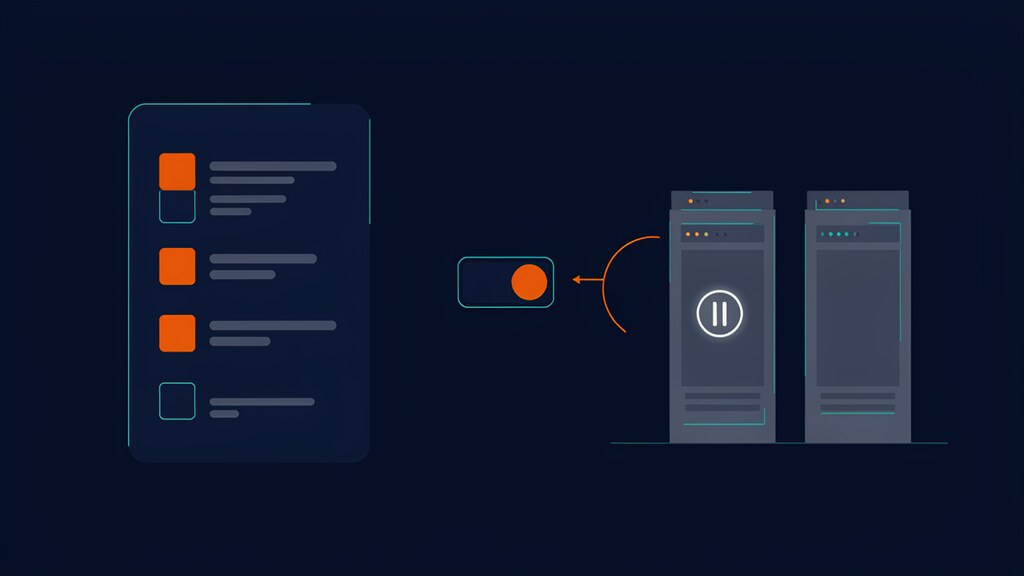
- Pause writes on the old site, run a final copy for posts, orders and accounts created during the first copy, then point the domain. A live copy is not one consistent snapshot.
- Keep the old site available until you have verified the new one.
The guide does not give DNS record or TTL details, and Reprint does not switch DNS for you. If email breaks after a DNS change, our guide on email not working after switching to Cloudflare covers the usual missing or proxied records. Before any migration, take a separate backup too. We compare two free options in UpdraftPlus vs Duplicator.
What Reprint does not do
The handbook has a page of limits, and it is worth reading before you plan a move. The key ones:
| Limit | What it means for you |
|---|---|
| It does not merge | Copies run one way. The source overwrites the destination, so edits on both sides are never combined. |
| It does not freeze the source | Files and rows can change mid-copy. |
| It does not bypass host limits | PHP limits, firewalls and security services still apply. It cannot pass a Cloudflare browser challenge. |
| It skips generated files | Backups, caches, logs and temporary files are always skipped. |
| It does not make every plugin work | A finished copy does not guarantee plugins run on the new PHP version or database engine. |
| It does not disconnect live services | Mail, payments and scheduled jobs still point at live accounts. |
| It does not switch traffic | DNS changes and deleting the original site are up to you. |
One more point for site owners behind Cloudflare: because the client cannot pass a Cloudflare browser challenge, a strict firewall rule on the source can block the pull. Our Cloudflare SSL modes guide helps if HTTPS settings are part of the problem. Also remember that a copy contains your whole database, including users and private content, so store it securely. If your site is not yet on a patched release, update first; see our WordPress 7.1.4 security update checklist.
Not ready to install anything? The announcement links to a browser demo that copies a sample site inside WordPress Playground. The post calls the browser-based option experimental, so use it to learn the flow, not for a real site.
Reprint is a promising official option for test copies and host moves, with resumable transfers and URL rewriting built in. It is brand new and one-way, so run a local test copy first, keep a separate backup, pause writes before the final copy, and do not switch DNS until you have checked the new site.
Frequently asked questions
Is the WordPress Reprint plugin free?
Yes. WordPress.org describes it as a free, open-source tool, and the plugin listing says no Reprint account is required.
Does Reprint work on a live site?
You can copy a site while it serves visitors, but the result is not a frozen snapshot. For a final move, pause writes before the last copy.
Can Reprint push changes back to my live site?
Not with the WordPress.org version, which only serves downloads. Push needs a server build configured by the host.
Does it work with multisite?
Partly. The plugin supports multisite and a network administrator manages access, but it cannot copy a whole network. It can move one site out of a network.
Is it safe to leave the plugin active?
Activating it does not authorize anyone. Still, remove the Migration Token when you finish, and delete the plugin if you no longer need it, which removes its stored settings and credentials.
Sources: WordPress News: Copy Your WordPress Site with Reprint; Reprint plugin page; Reprint requirements; Authorize the Reprint client; Move to another host; What Reprint does not do. Checked November 2026.
More in Software & Tools

Google November 2026 Core Update: What to Check Now
Google's November 2026 core update began on 10 November and may take two weeks. Here is what to check, when to wait, and what not to change.

Google’s New AI Training Control in robots.txt Explained
Google plans one shared AI training control for robots.txt in early 2027. See how it works with Google-Extended and what to check on your site now.

WooCommerce 11.2.2 Security Update: What to Check Now
WooCommerce 11.2.2 security update: what the 4 November release hardens, the database update, and a safe step-by-step way to update your store.